SquirrelCast-Public
Using Live View
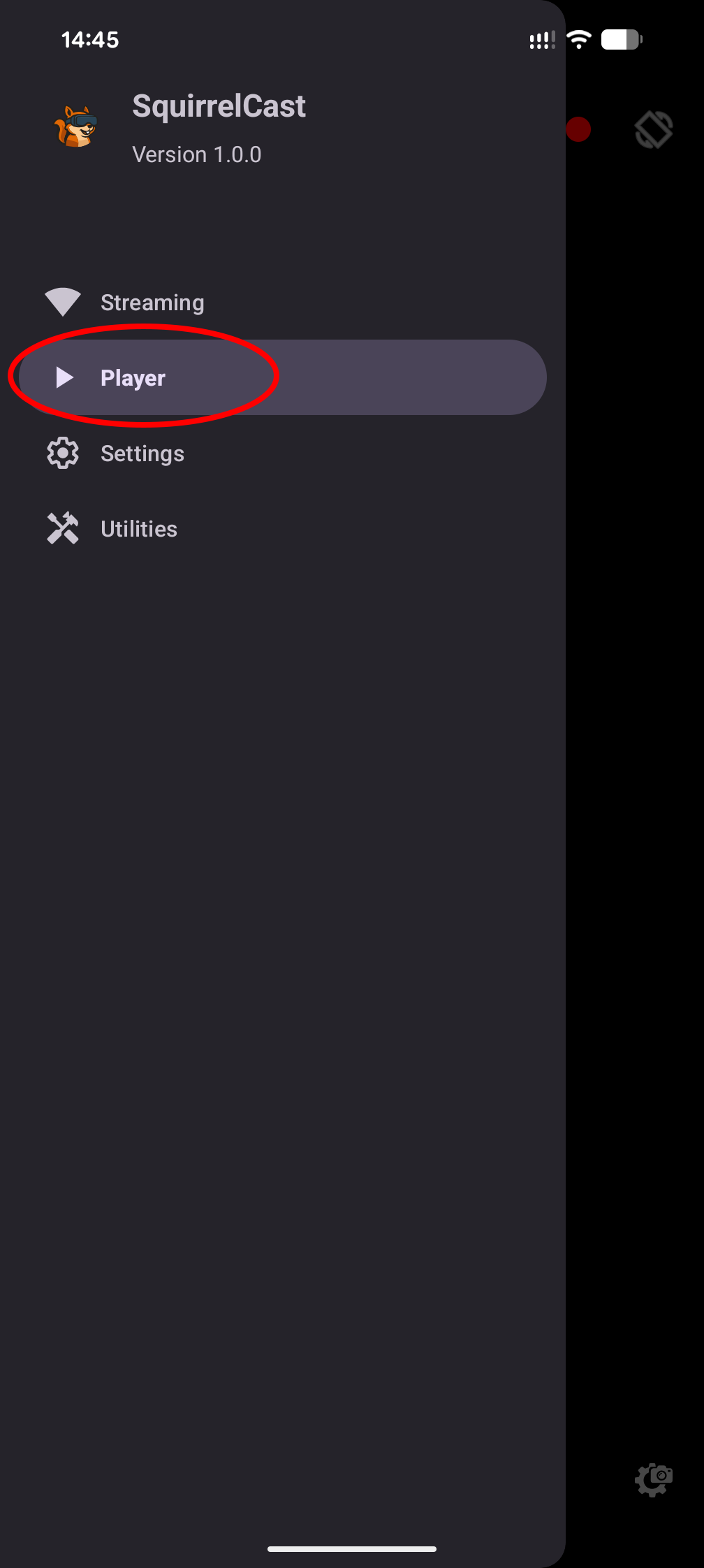
- Open the navigation menu (button at the top left).
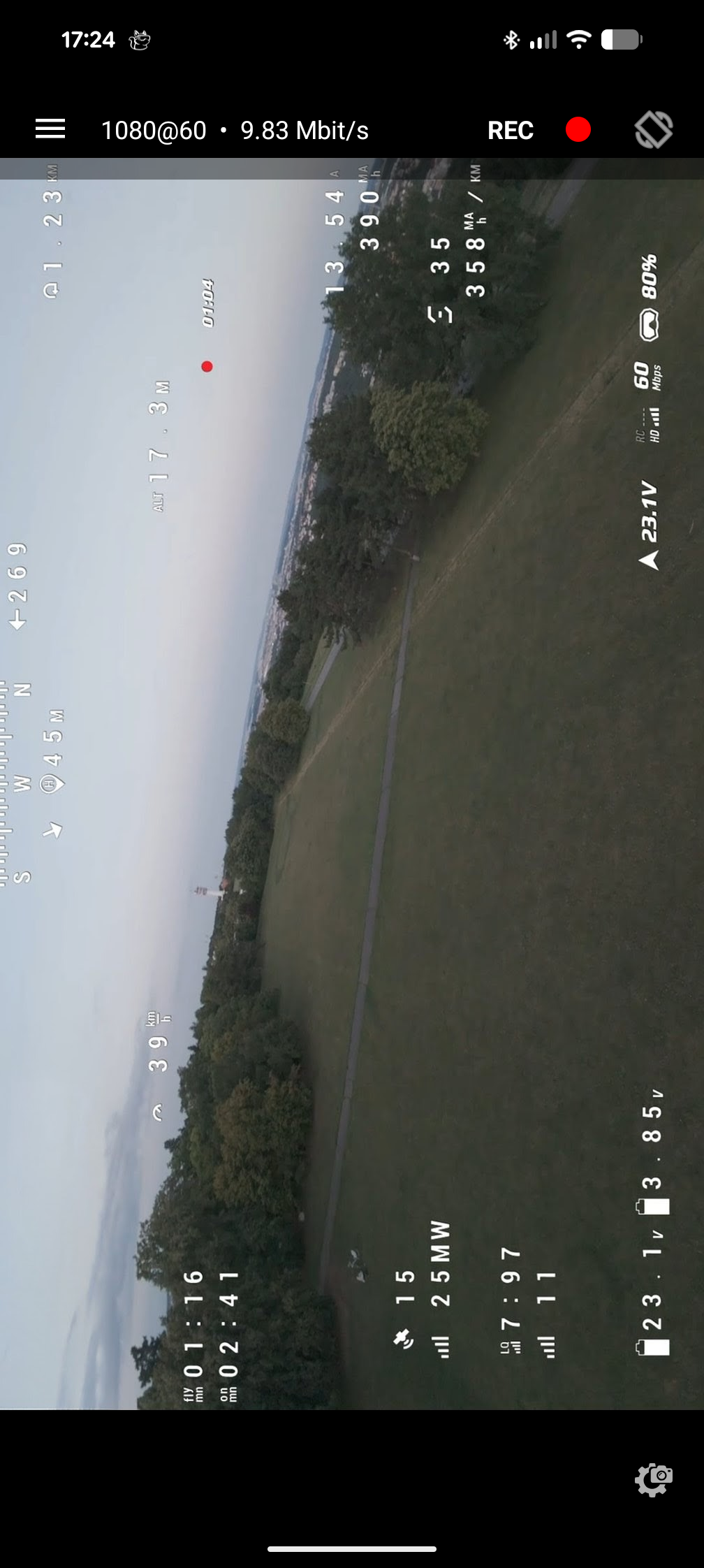
- Select the Player tab to bring up the live video screen.
Recording video and audio
To start or stop recording, press the Record button in the top right. It will record the live view on your phone and save it to Movies/SquirrelCast. To add an audio track, see Additional options.
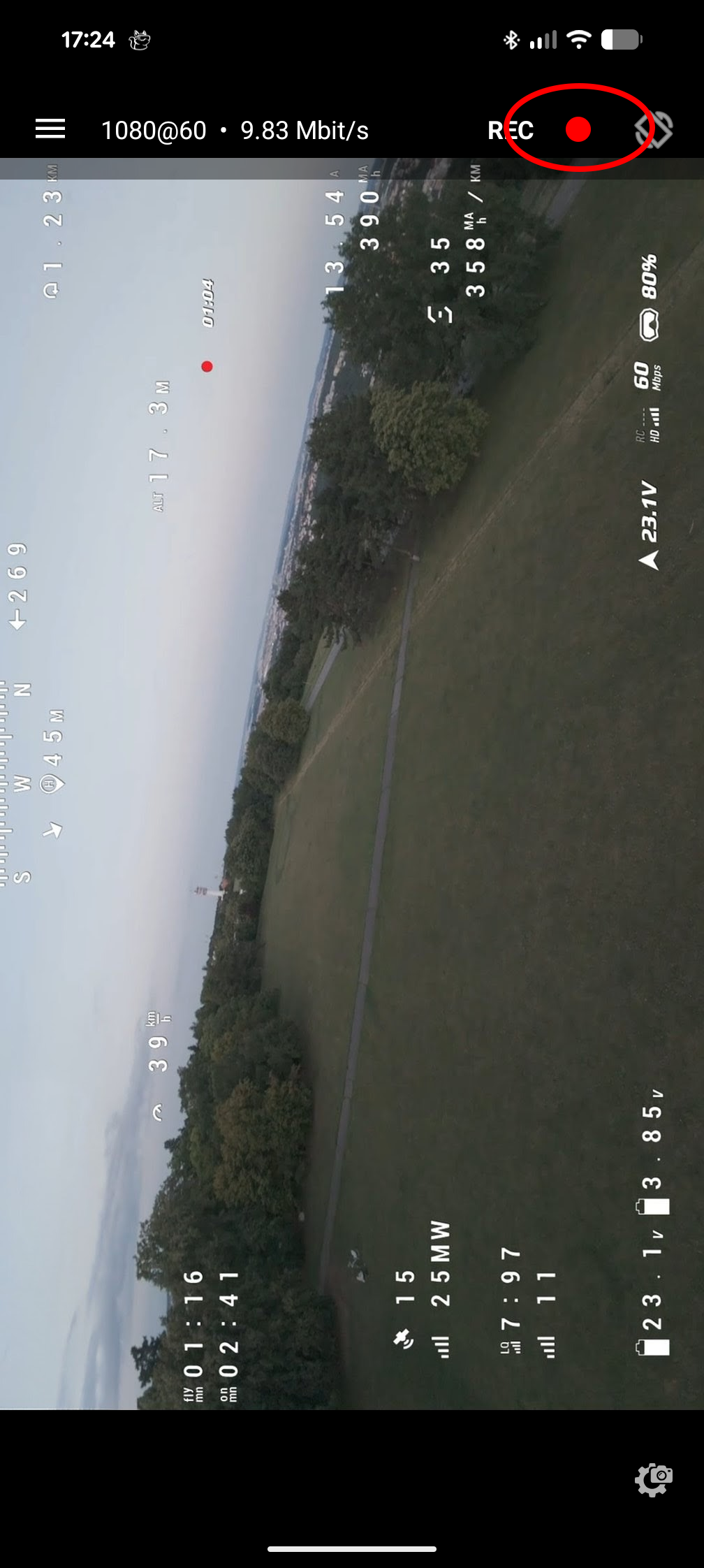
Recording continues even if you:
- Switch out of the Player tab
- Minimize the app
- Lock your phone
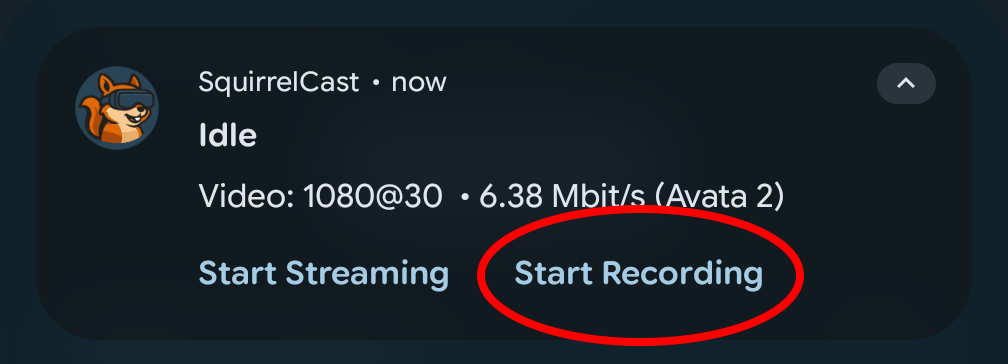
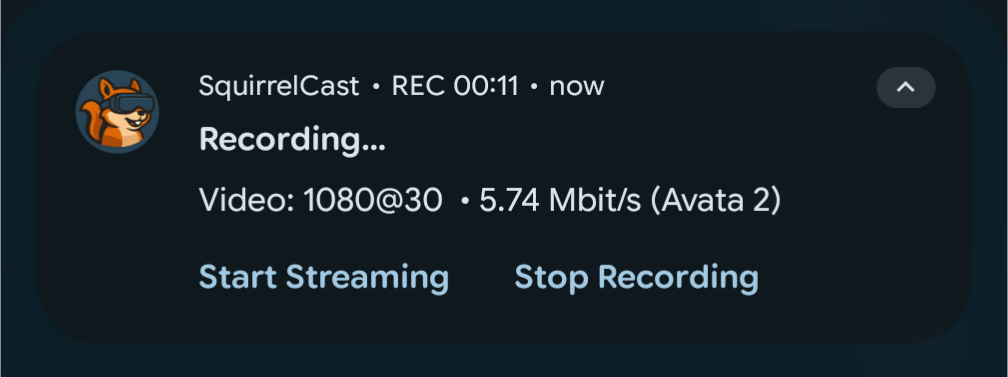
You can also start or stop recording from the Android foreground notification. It shows the current recording state and the recording duration.
Changing camera settings
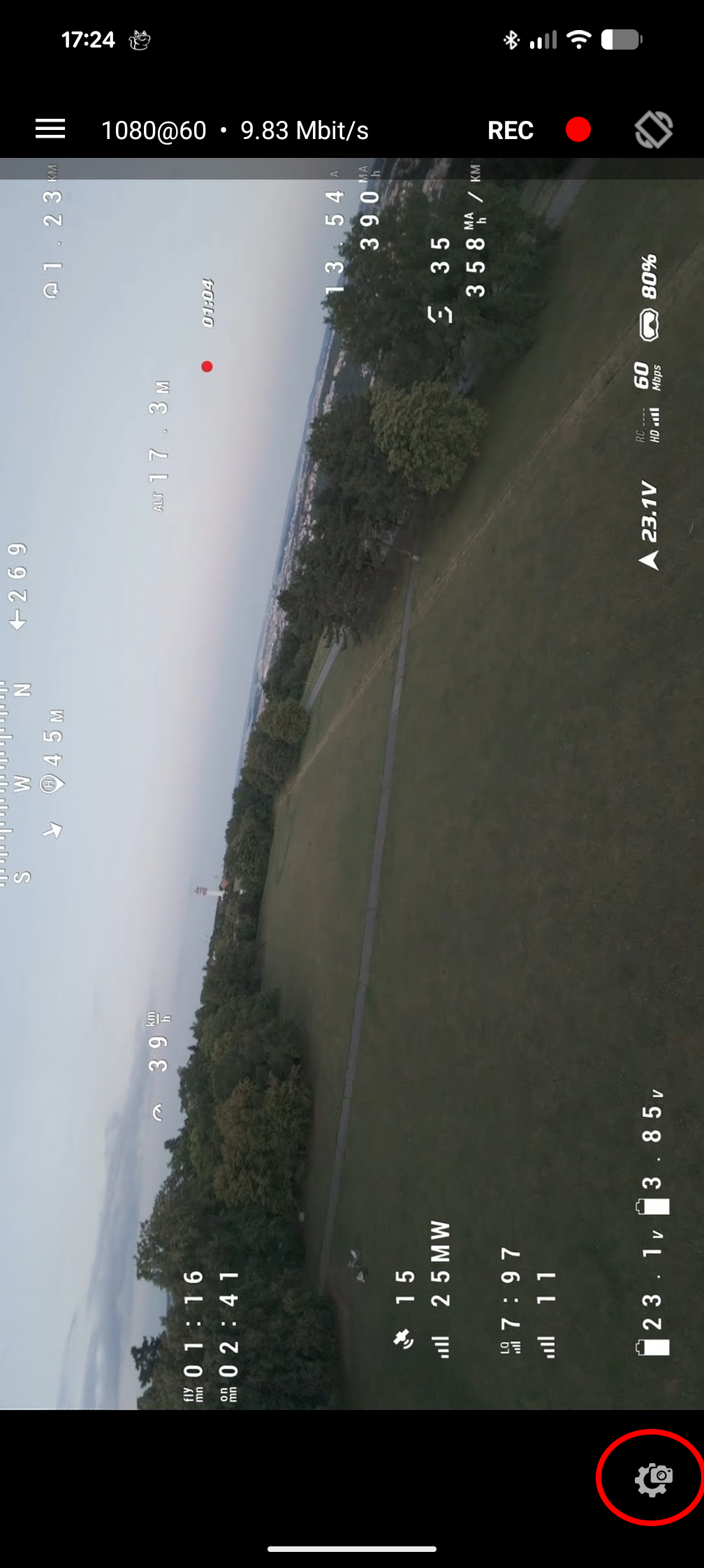
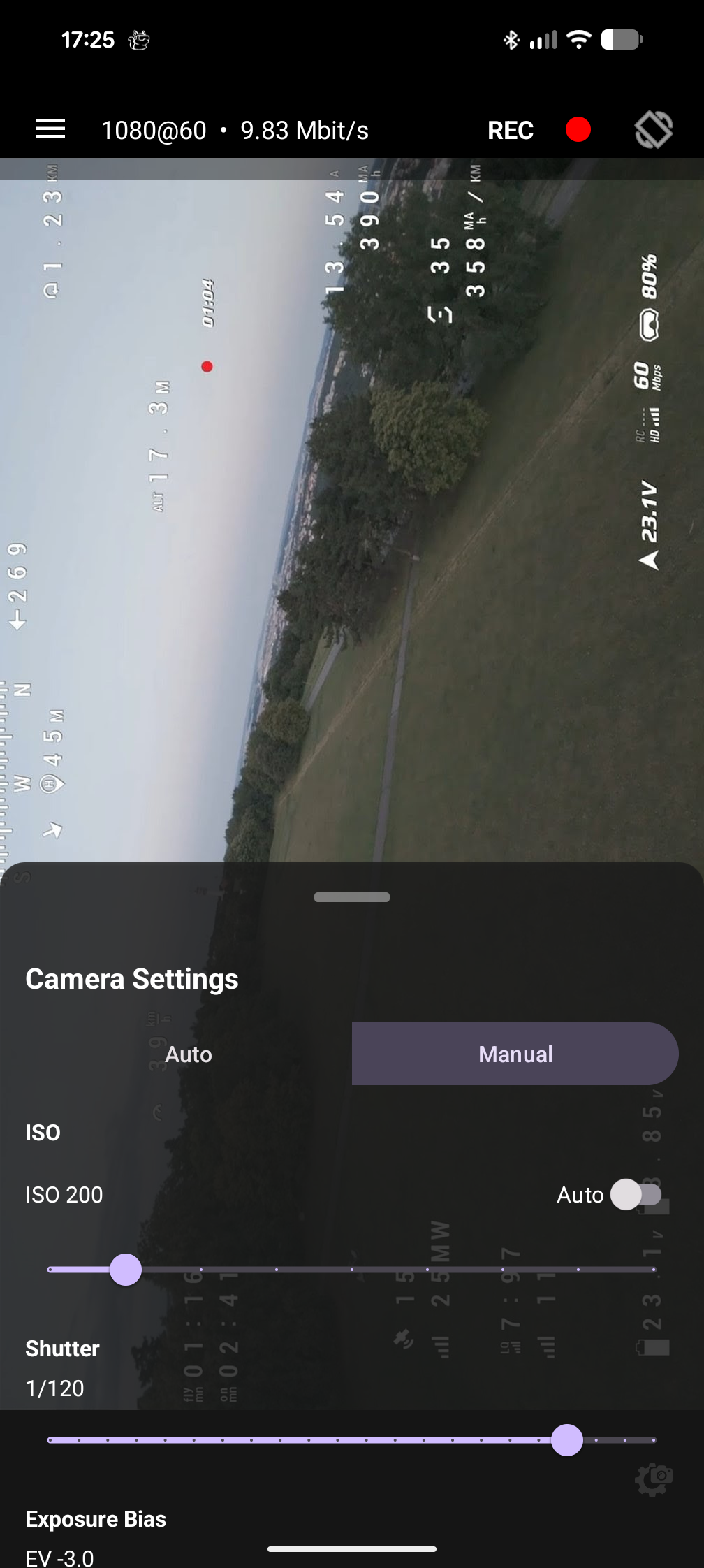
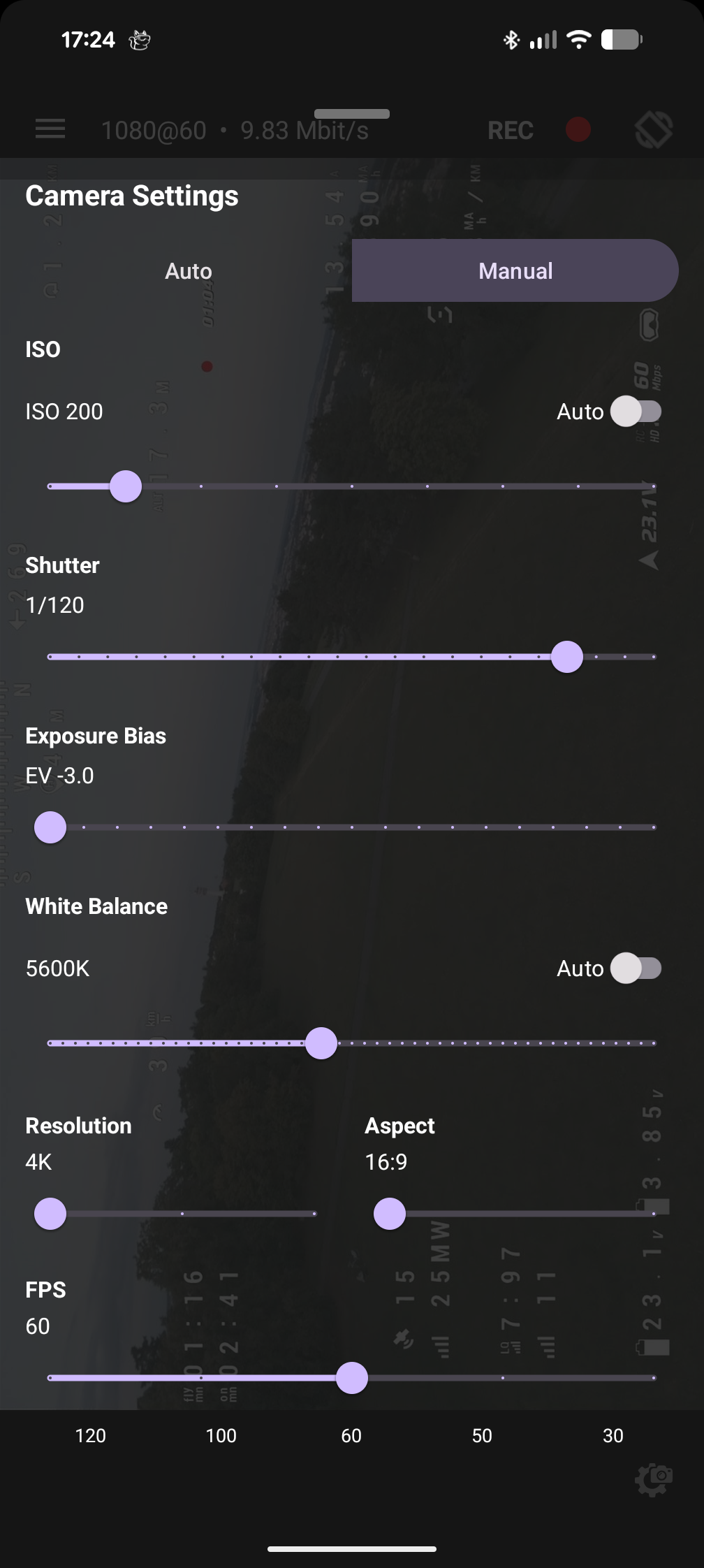
Tap the Camera Settings icon in the bottom right. This opens a menu where you can set the recording parameters of the air unit or DJI drone directly.
These include:
- ISO
- Shutter Speed
- Exposure Bias
- White Balance
- Resolution
- Aspect Ratio
- Framerate
Changing these will directly affect the camera settings of the drone or air unit.
Additional options
There are a few optional features hidden in the app settings.
- Open the main navigation menu.
- Go to Settings.
- Scroll down to Additional settings.
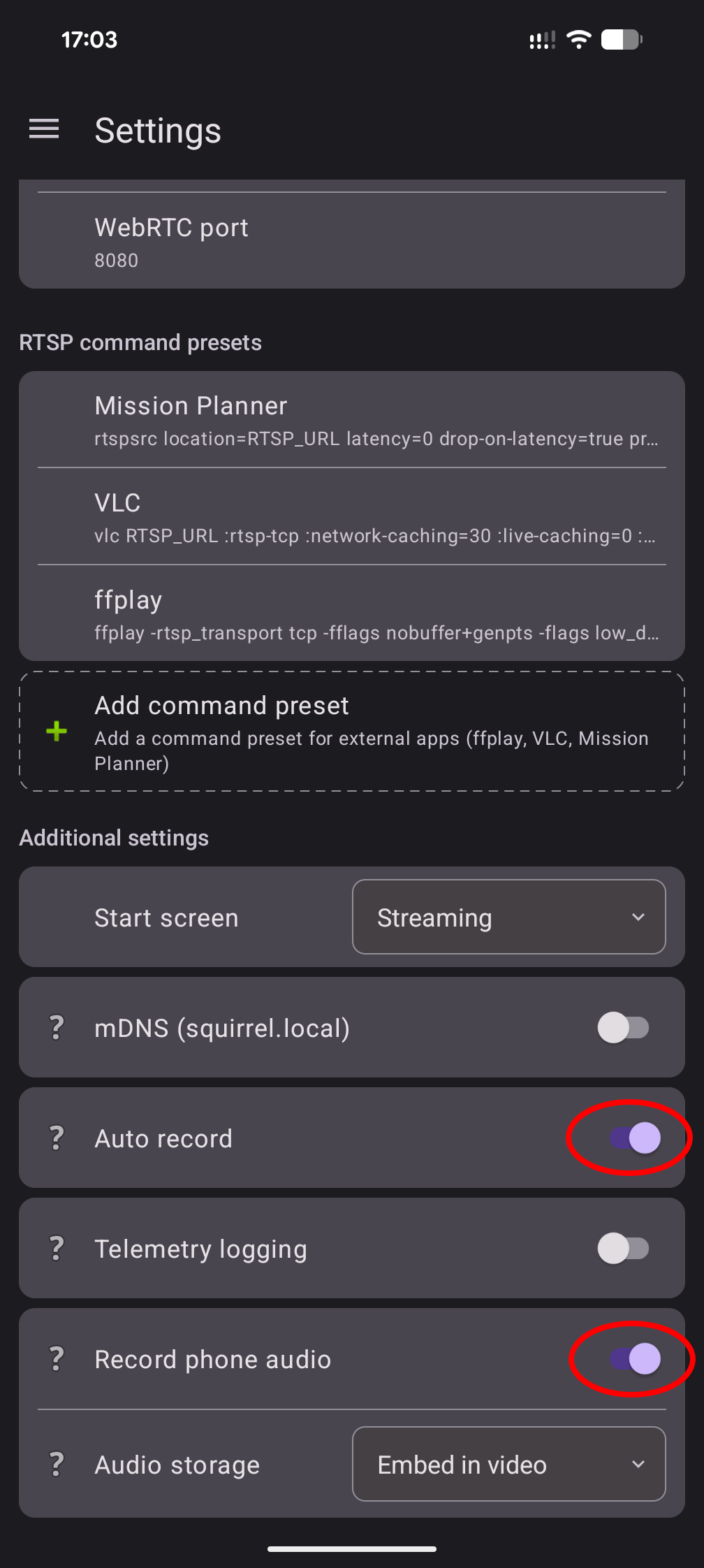
Auto record
When enabled, SquirrelCast will automatically start recording in the app whenever the air unit or drone starts recording.
This is useful if your goggles are set to auto record on arm, because SquirrelCast will also start recording on arm, as long as the air unit actually starts recording.
Note: SquirrelCast will also stop recording automatically when the air unit stops recording, so keep that in mind.
Record phone audio
Records your phone’s microphone audio during a Live View recording and stores it either as an audio track in the video, or as a separate audio file in Music/SquirrelCast. This feature is great for adding commentary during a flight but also generally makes footage more interesting.
Note: Requires microphone permission.