SquirrelCast-Public
Streaming Video Over Wi-Fi
The main feature of SquirrelCast is video streaming over a local Wi-Fi network. Most Android phones do not support HDMI output while also receiving video data over USB at the same time. Streaming over the local network is the next best way to get the live feed onto a bigger screen.
SquirrelCast offers two main streaming paths:
- Stream to a browser directly via WebRTC
- Stream to third-party apps via RTSP
There is also a third option for Goggles 3:
- Stream directly from the goggles to Windows using the goggles’ built-in Wi-Fi sharing and SquirrelReceiver. This only requires SquirrelCast for the initial setup, then it works without the app.
Note: SquirrelReceiver is Windows only for now. Support for macOS and Linux will be added later.
Stream to a browser (WebRTC)
This is the default streaming option.
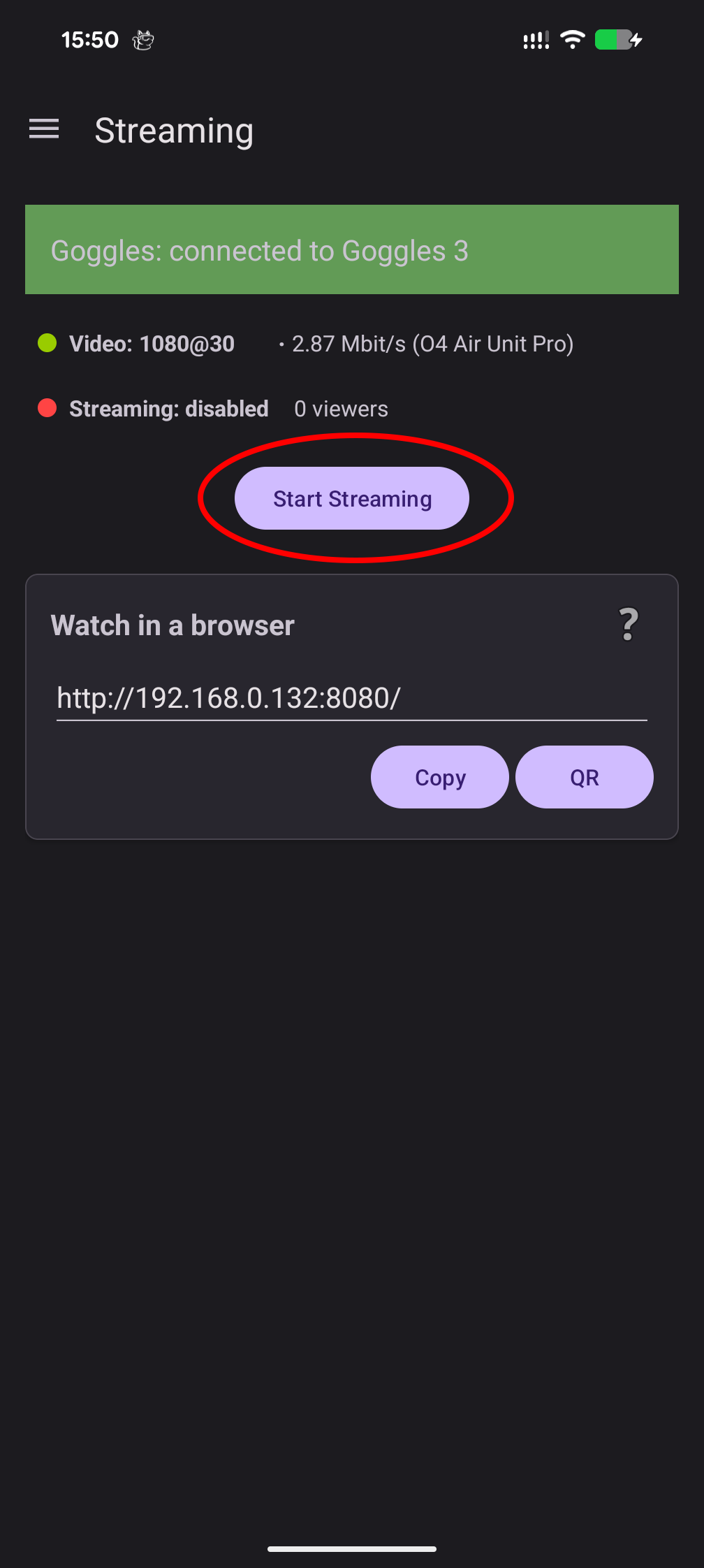
Once live video is received in the Player, tap Start Streaming to enable streaming.
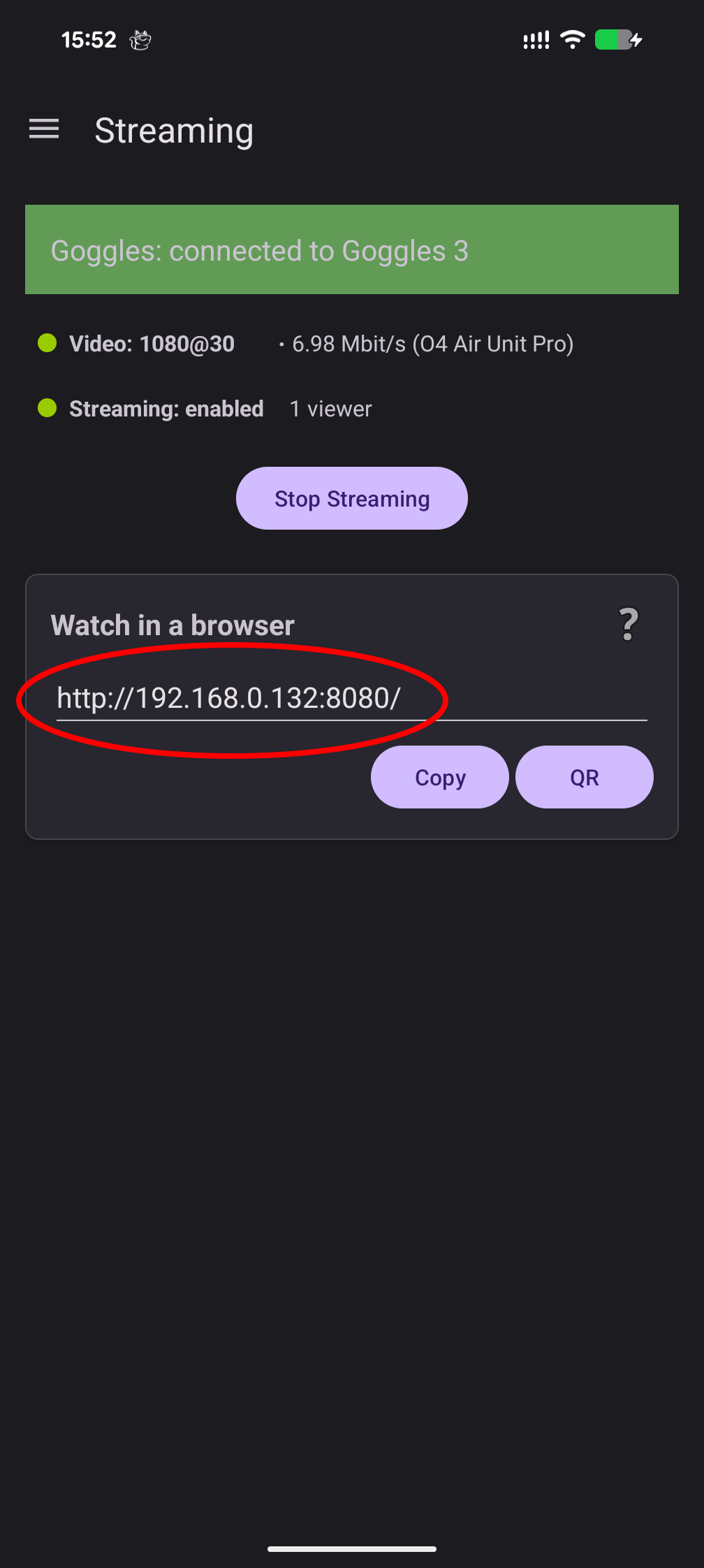
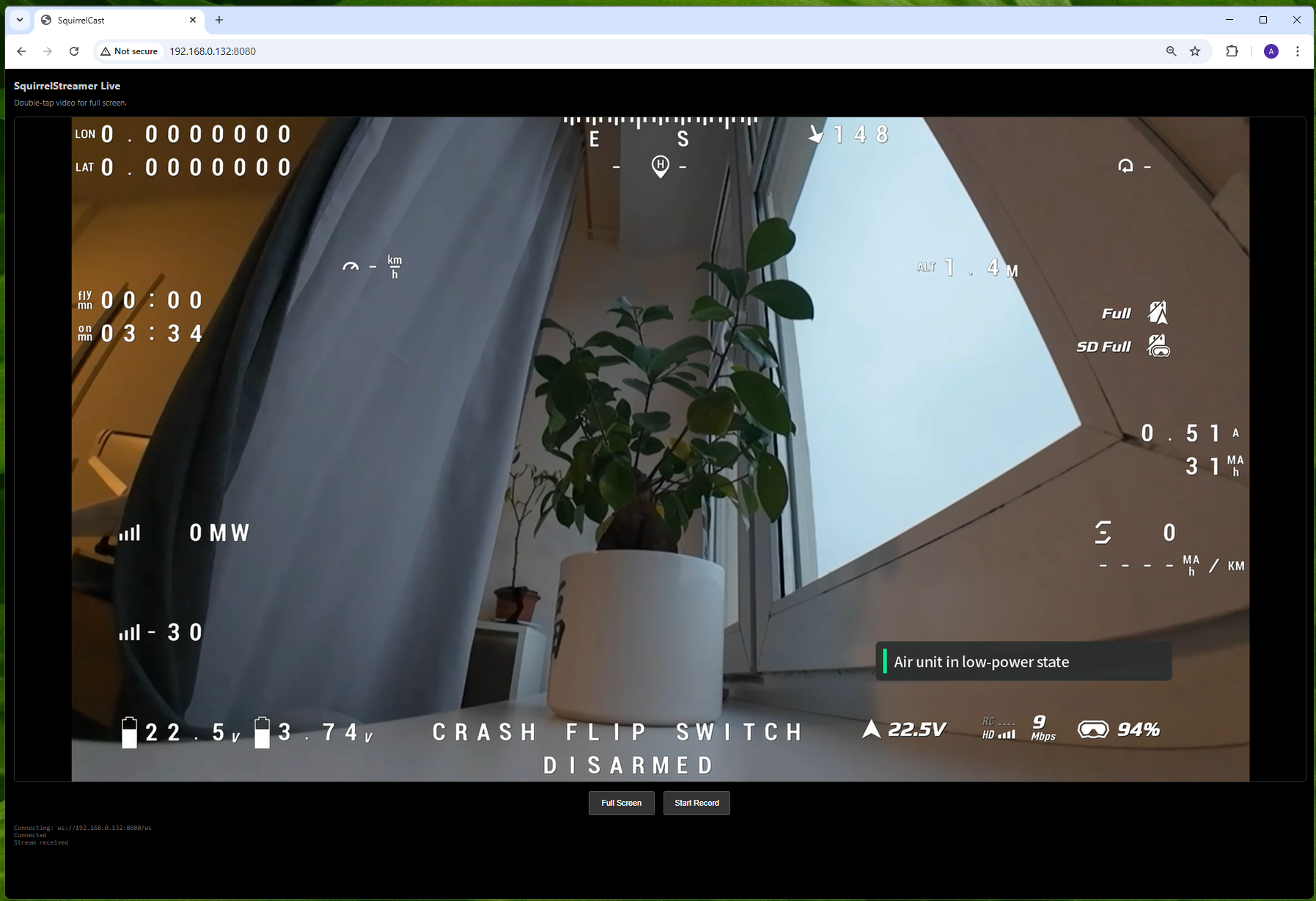
To view the stream, any device on the same Wi-Fi network can open a browser and enter the IP address shown in the app (or click QR to open a QR code and scan the QR). This opens a page with a live player and a recording option.
Notes
- In the field, when no Wi-Fi network is available, a Wi-Fi hotspot created by the streaming phone will work as well.
- Stream quality depends on network quality. On newer phones the hotspot is usually good enough, but on older phones the stream can contain stutters and glitches due to network jitter and packet loss.
- Putting the phone into flight mode to prevent other traffic can help (as long as Wi-Fi stays enabled).
- If you change network settings on the streaming phone, the stream needs to be restarted.
- Sometimes the receiver can time out, if that happens, simply reload the page.
A foreground notification shows the stream status and the number of connected viewers. It also contains a button to turn the stream off.
Stream to third-party apps (RTSP)
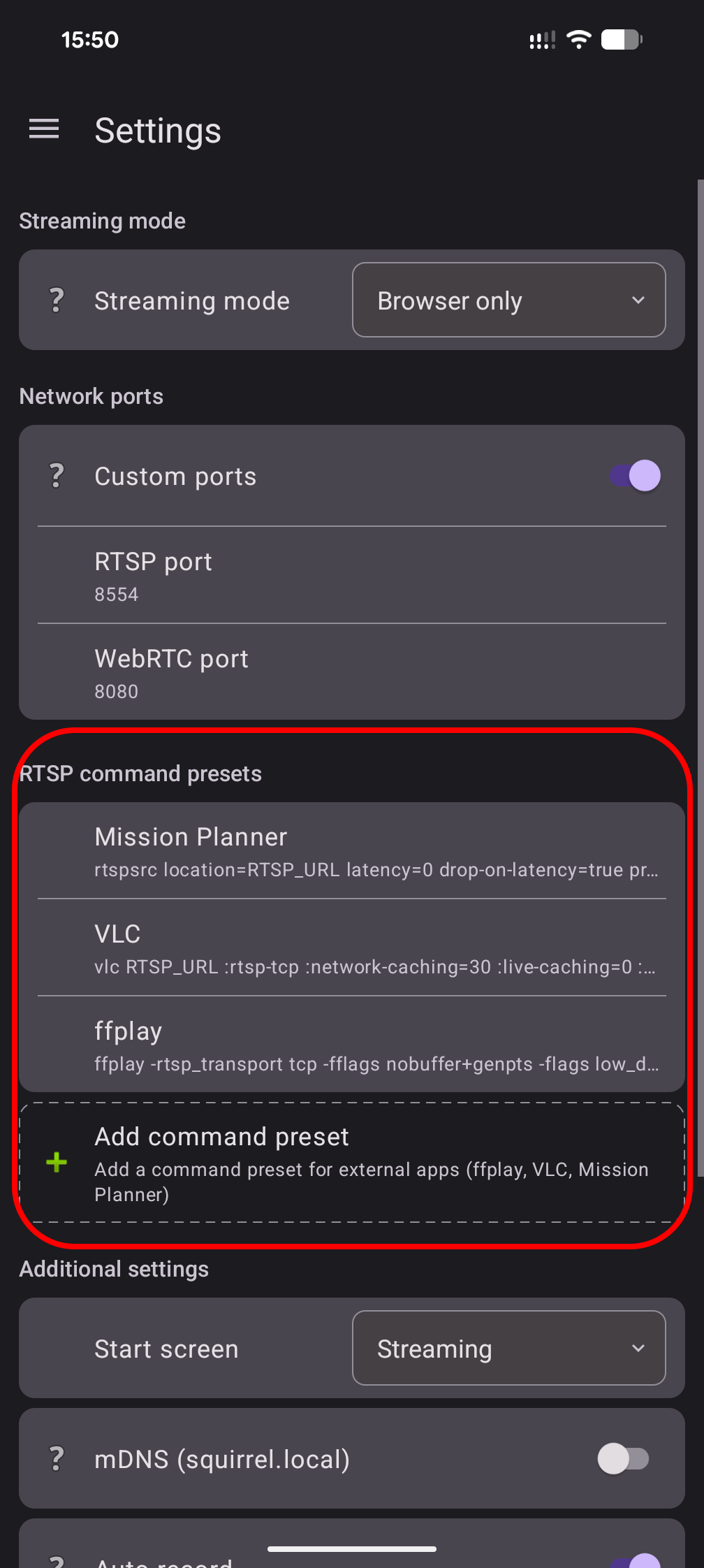
Streaming via RTSP is off by default and needs to be enabled in the settings first.
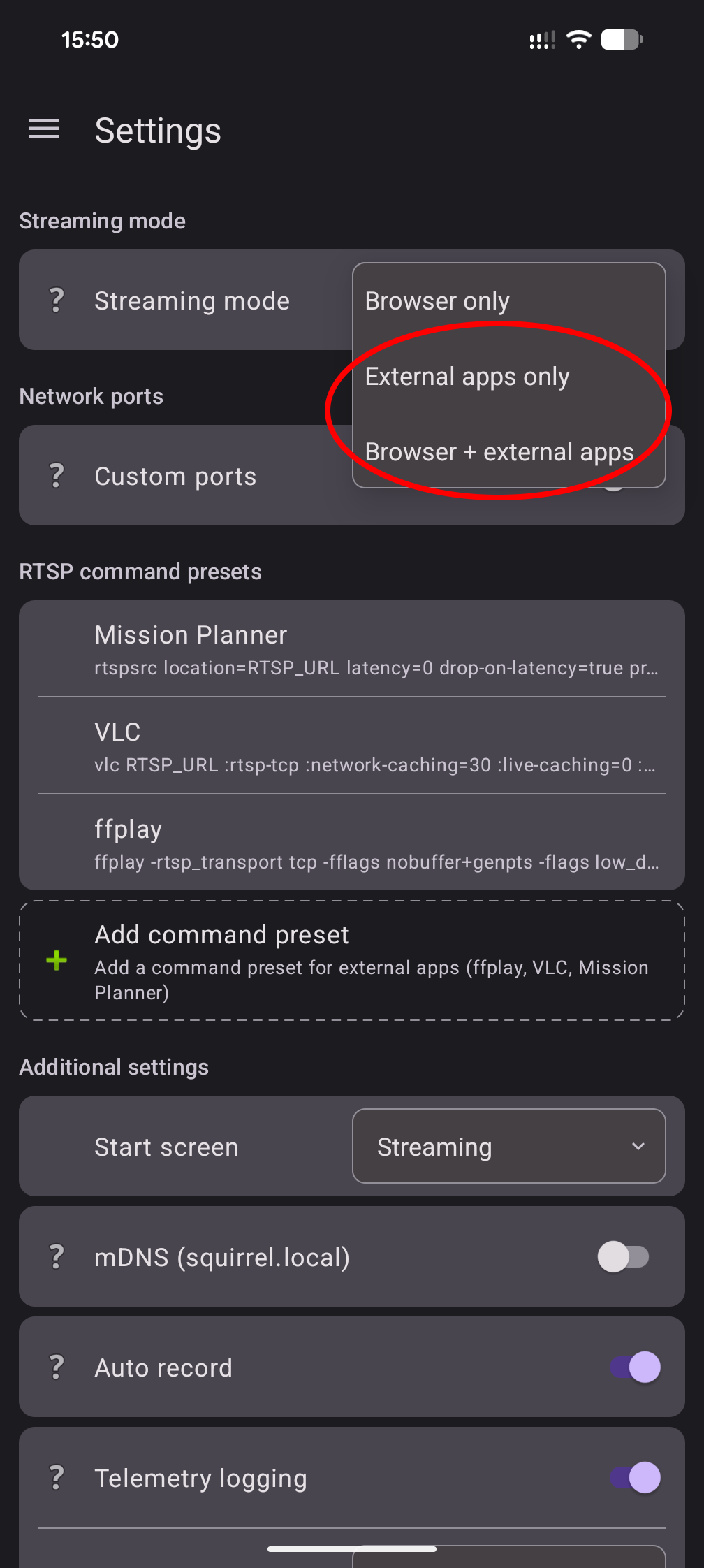
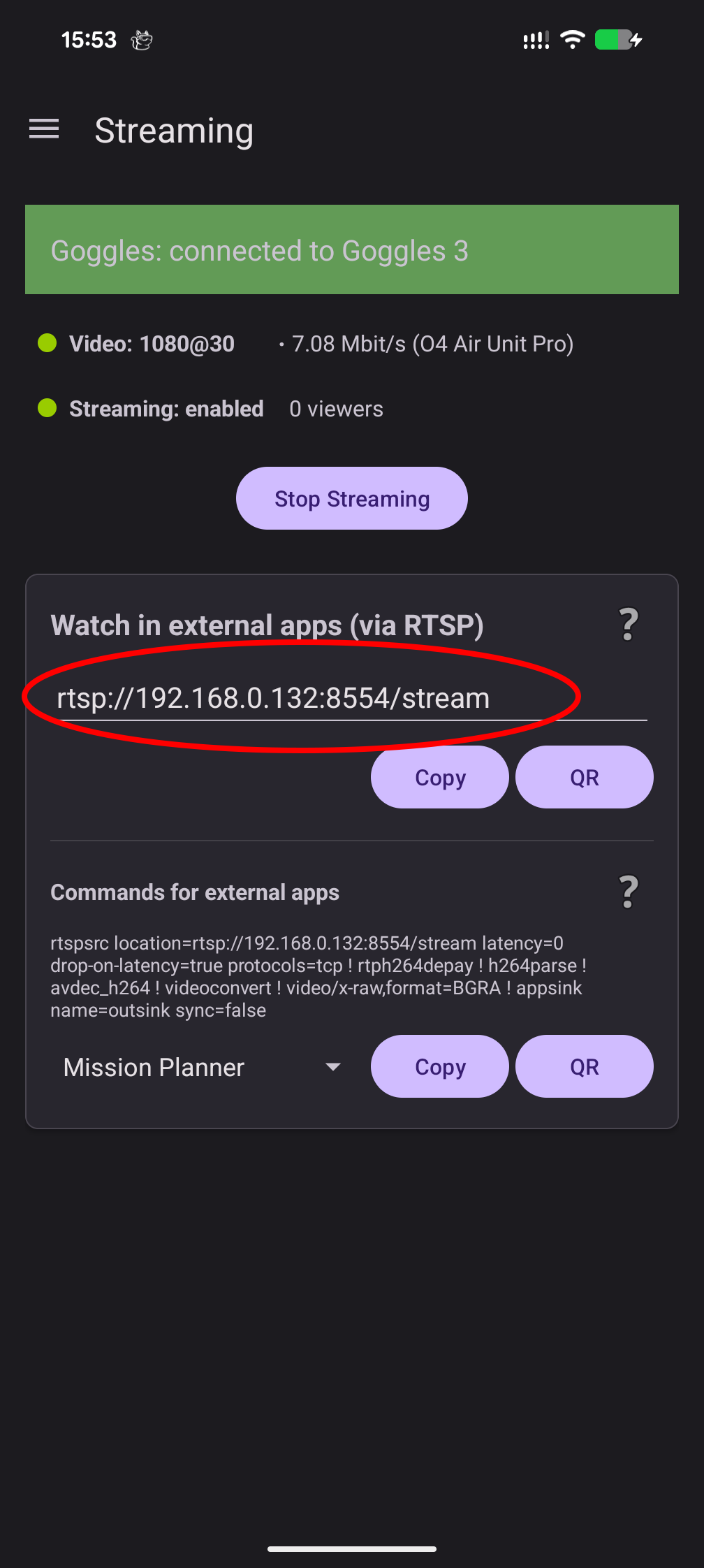
Once enabled, the RTSP URL will be shown on the Streaming tab.
Depending on the app used to receive the RTSP stream, a specific launch command might be needed. SquirrelCast provides commands for a few apps, and users can add more in the settings.
Set up Live Video in ArduPilot Mission Planner
- Make sure you are on the same local network as the phone.
- Open Mission Planner.
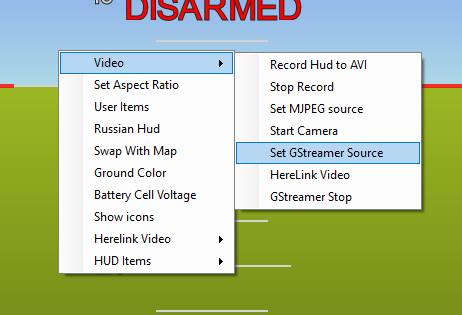
- Right-click the HUD and select Video → Set Gstreamer Source.
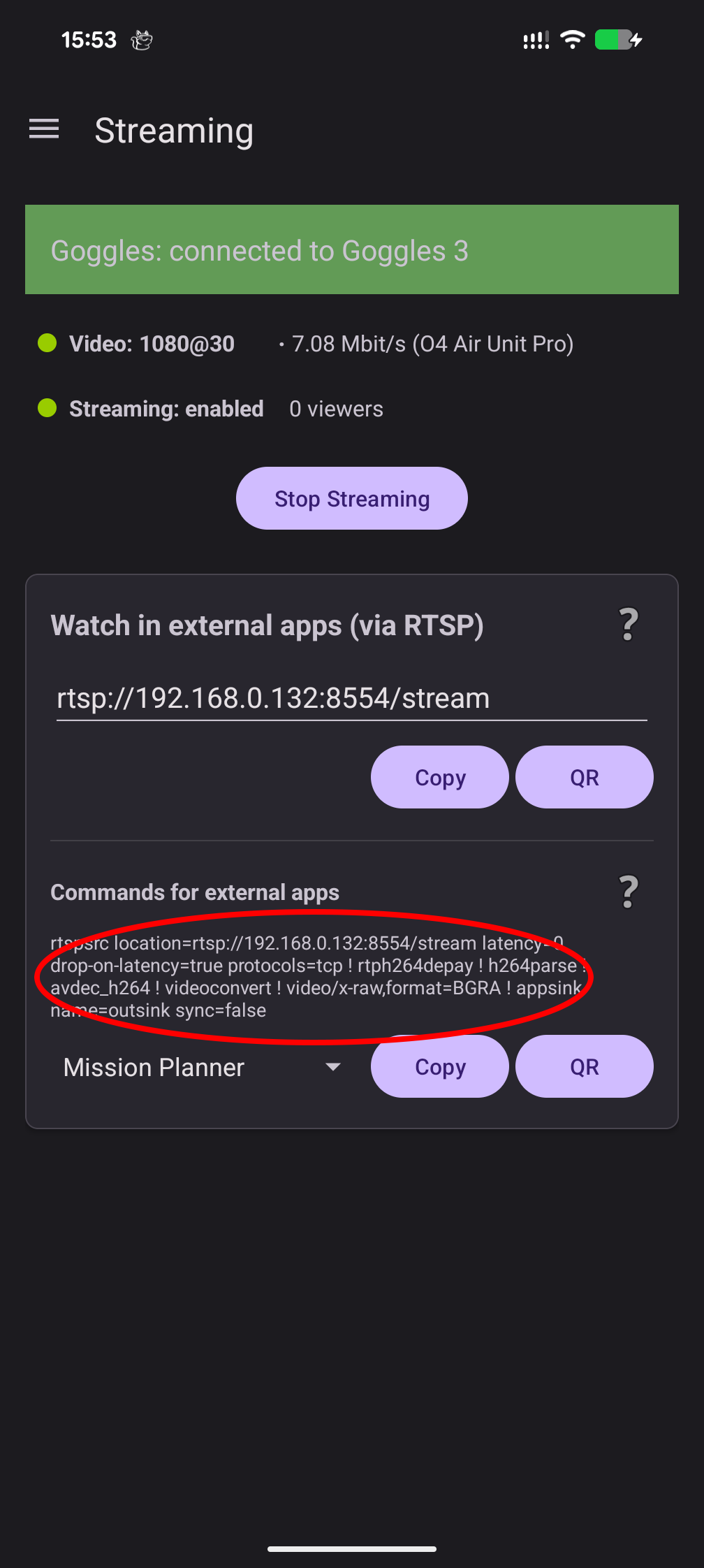
- In the window that opens, paste the command preset for Mission Planner from the SquirrelCast Streaming tab.
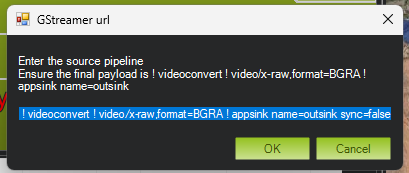
- Press OK. After a few seconds, the video should appear automatically.
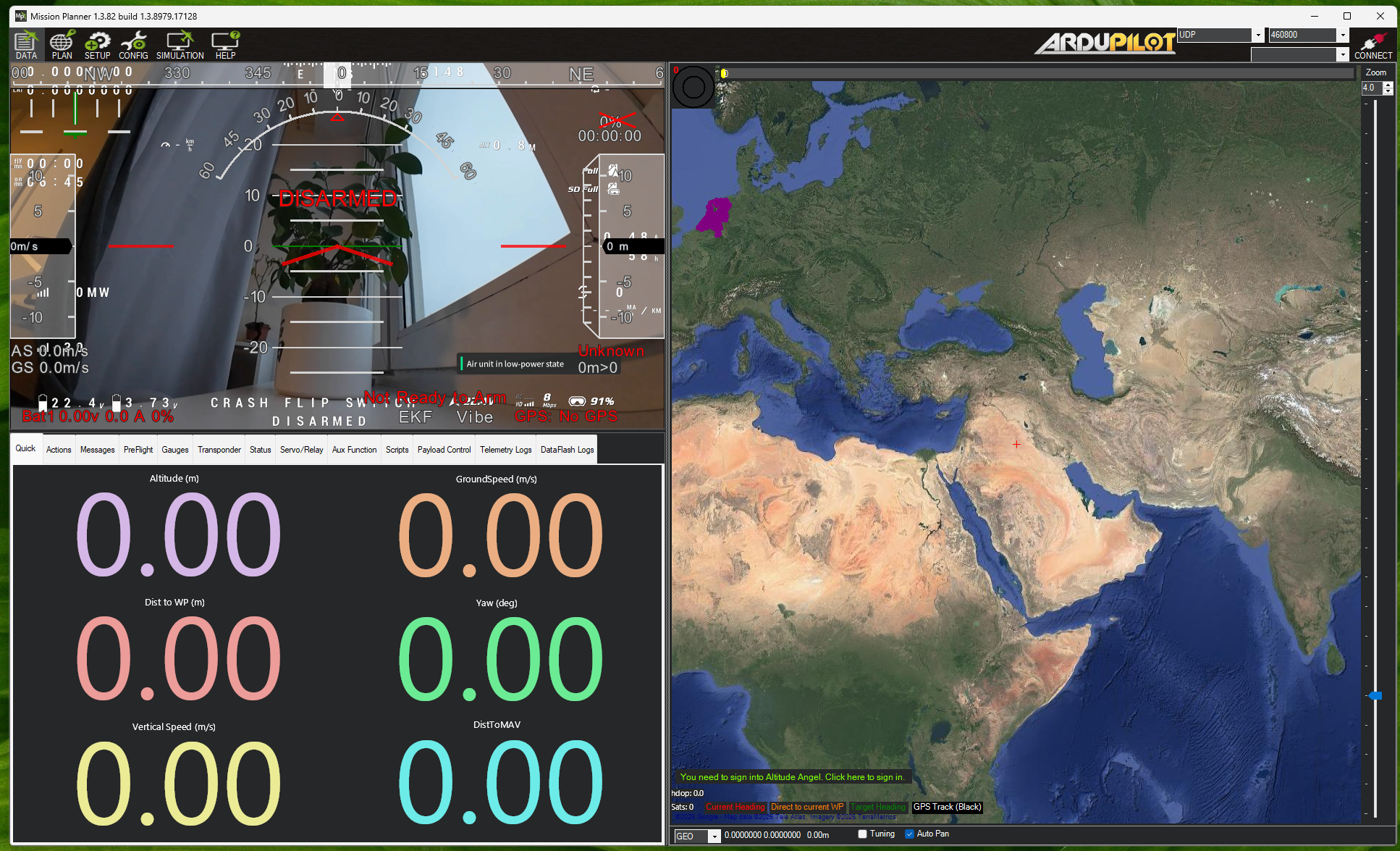
Note: If the image looks distorted, right click the video and adjust the aspect ratio.
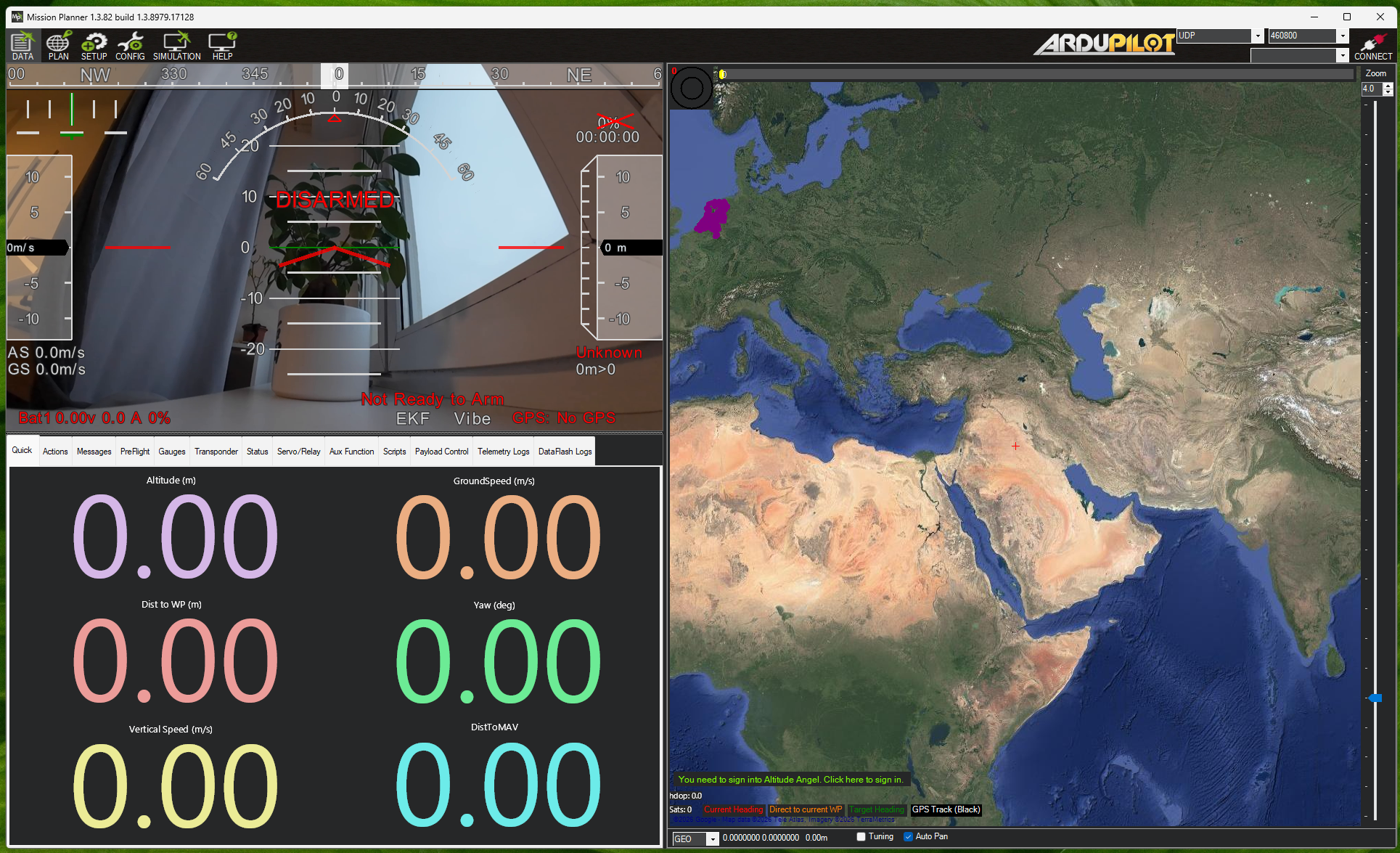
Clean video feed (no MSP OSD)
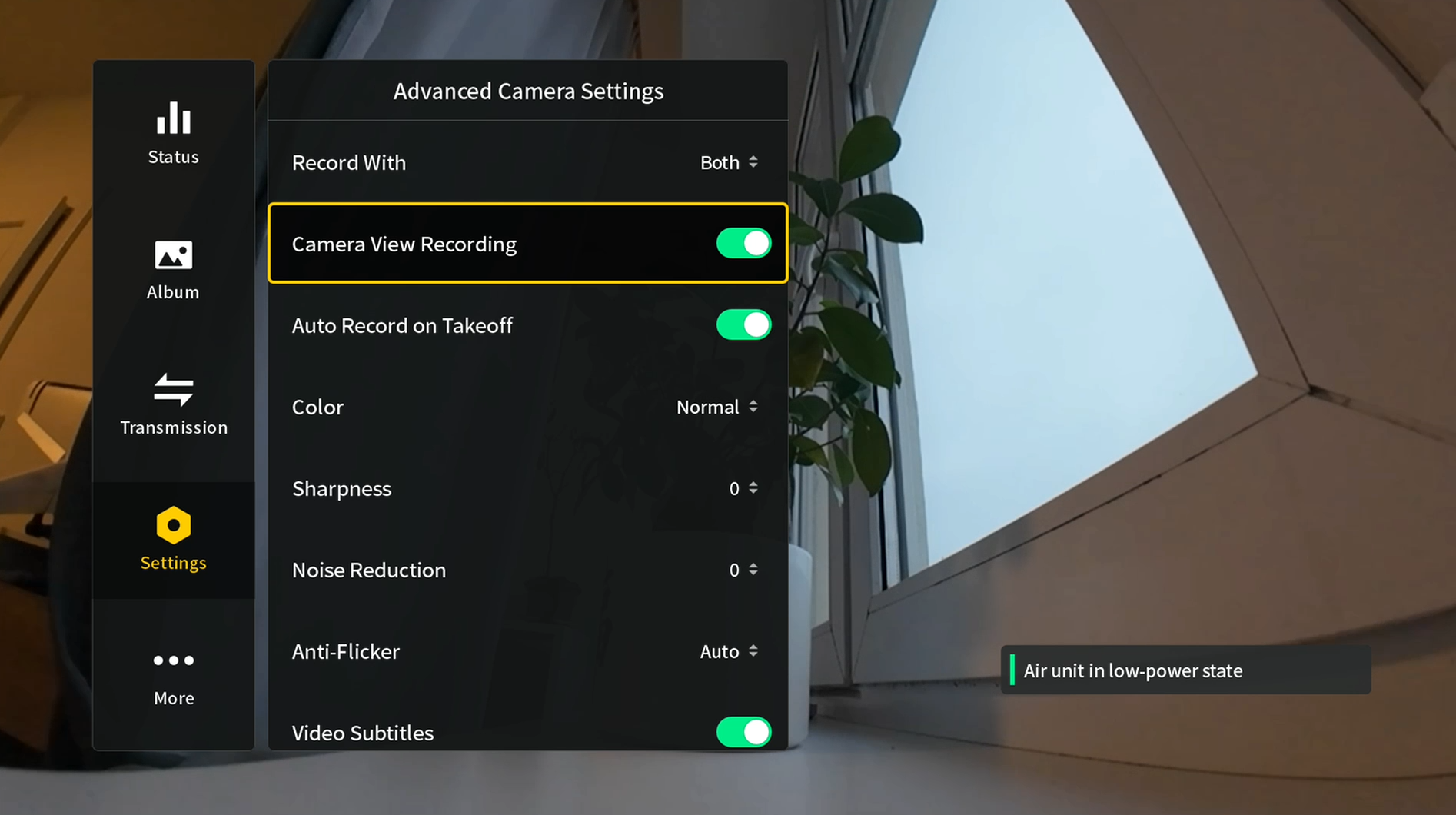
If you want a clean video feed (without MSP OSD), turn off overlays in the goggles:
Settings → Camera → Additional Camera Settings → Camera View Recording → Off.
Stream directly from the goggles to Windows using SquirrelReceiver
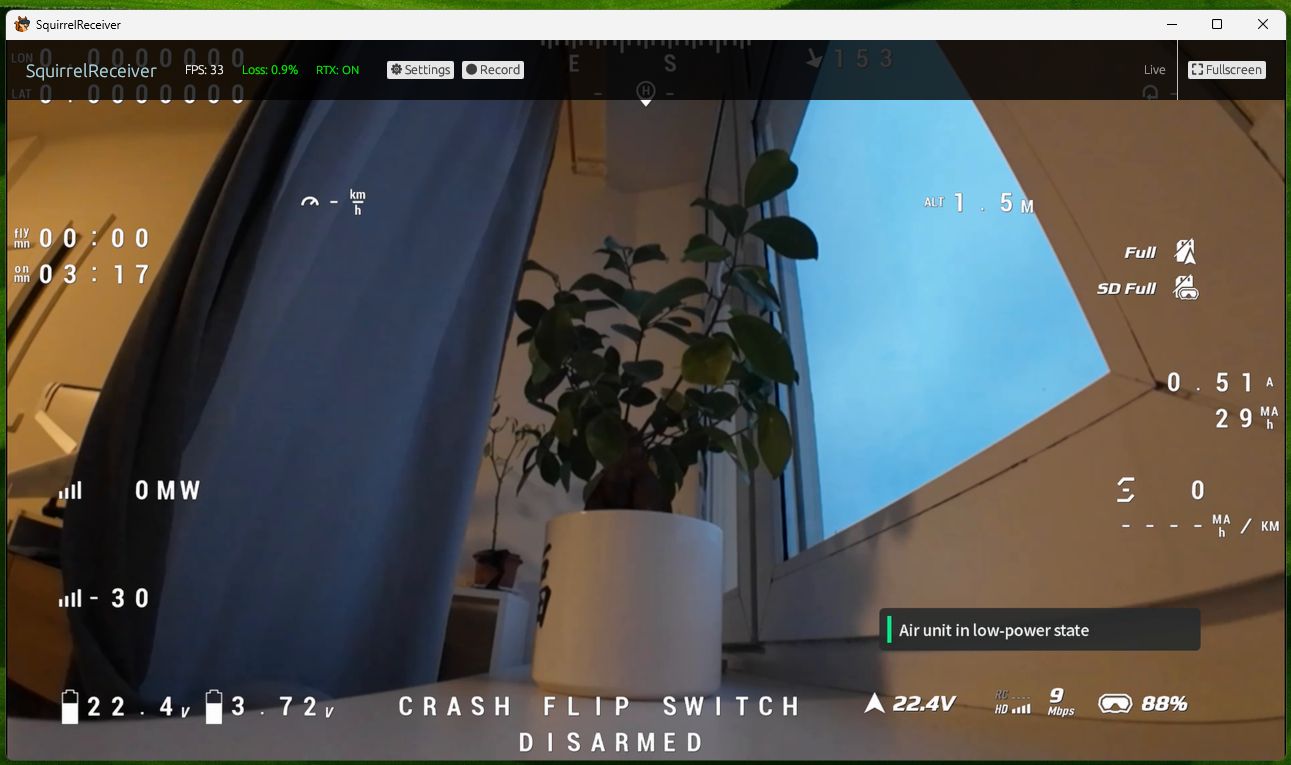
SquirrelReceiver is an additional Windows tool that receives video directly from the goggles using the built-in wireless sharing feature, without SquirrelCast running. It is not an alternative RTSP receiver at the moment.
SquirrelReceiver can be downloaded from its GitHub releases page:
https://github.com/xNuclearSquirrel/SquirrelReceiver
Note: Currently only works with DJI Goggles 3.
Install and unlock SquirrelReceiver
- Install SquirrelReceiver on Windows and open Settings.
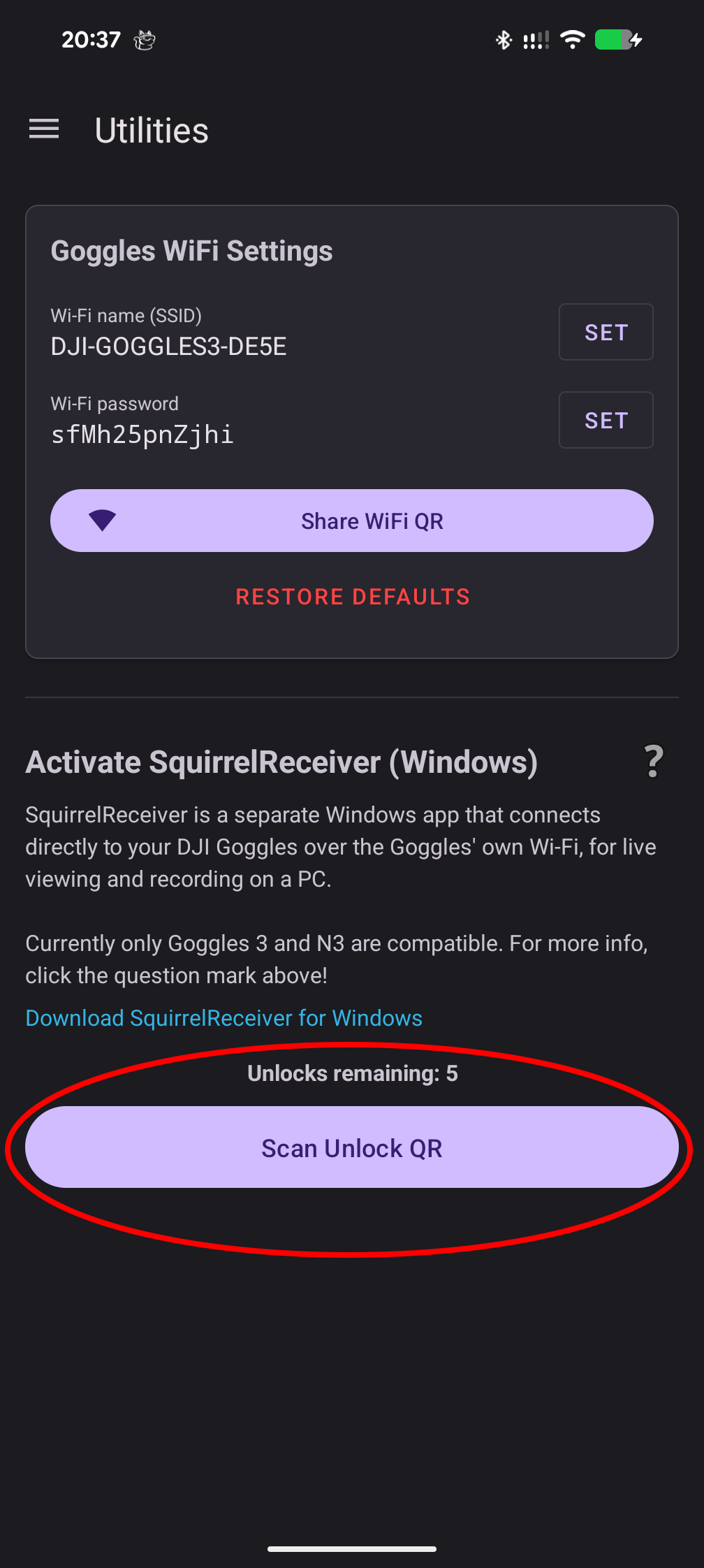
- In SquirrelCast, open the Utilities tab.
- Select the Unlock button and scan the QR code shown in SquirrelReceiver to generate a license key and unlock SquirrelReceiver.
Configure goggles’ Wi-Fi
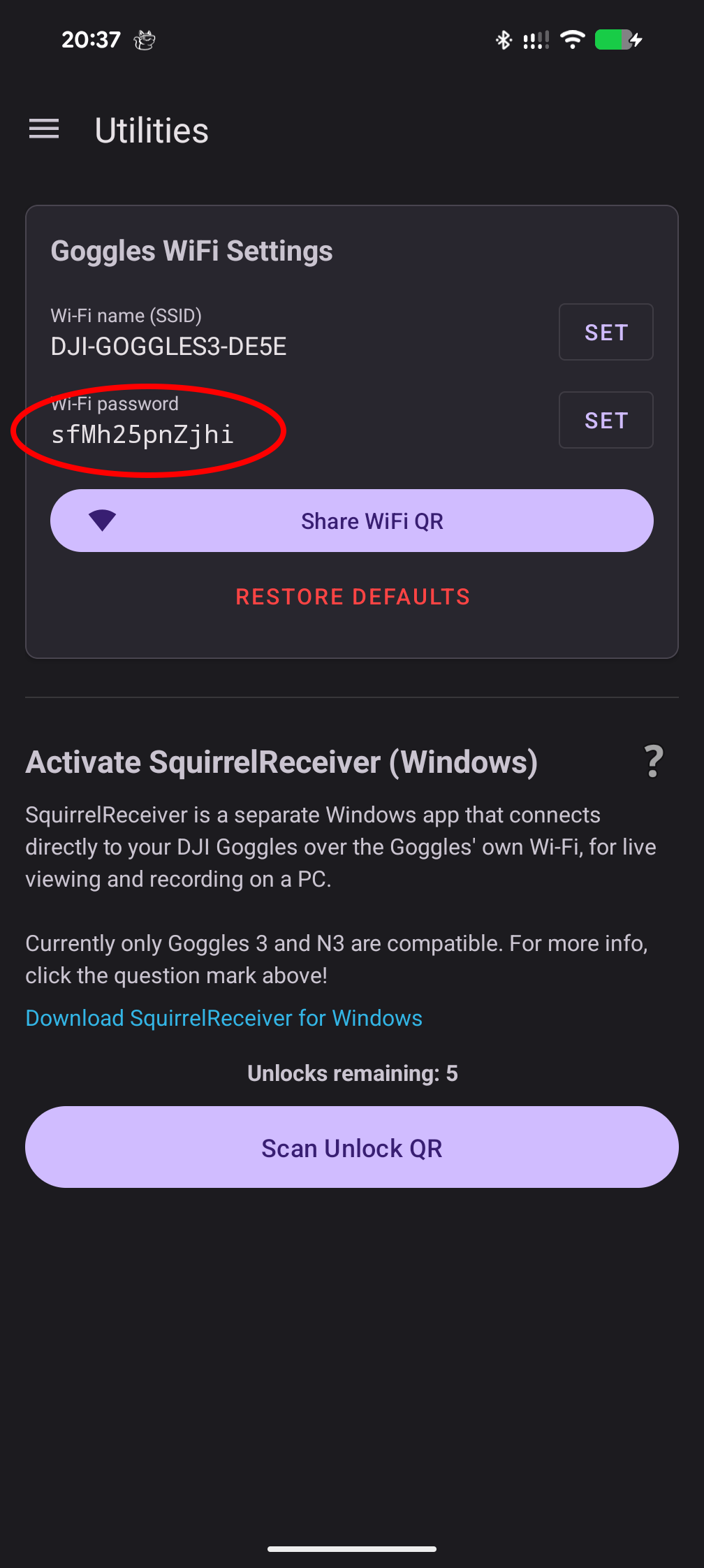
- Connect SquirrelCast to the goggles.
- In SquirrelCast, open the Utilities tab and configure the goggles’ Wi-Fi network (or leave the default network, but note down the password).
Enable Live View sharing
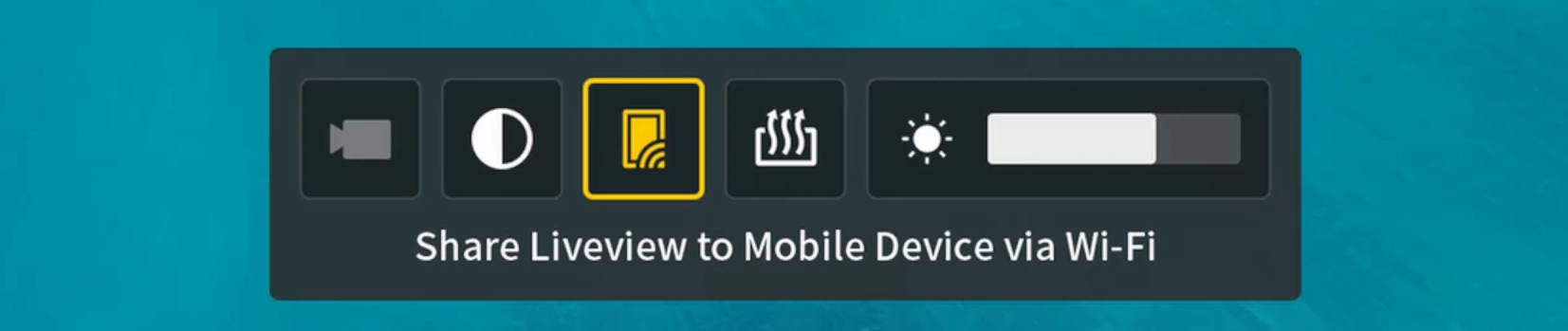
On the goggles, enable Live View sharing (pull down on the 5-position stick and enable Live View sharing).
Connect Windows to the goggles’ Wi-Fi
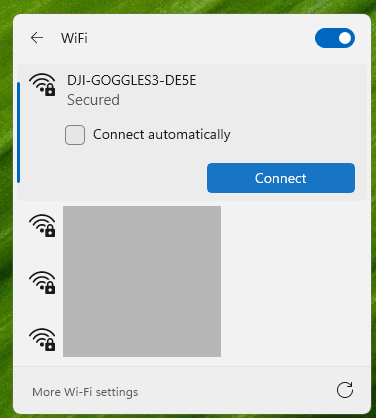
- On the Windows PC, connect to the goggles’ Wi-Fi network.
- The stream should start automatically in SquirrelReceiver.
Additional settings
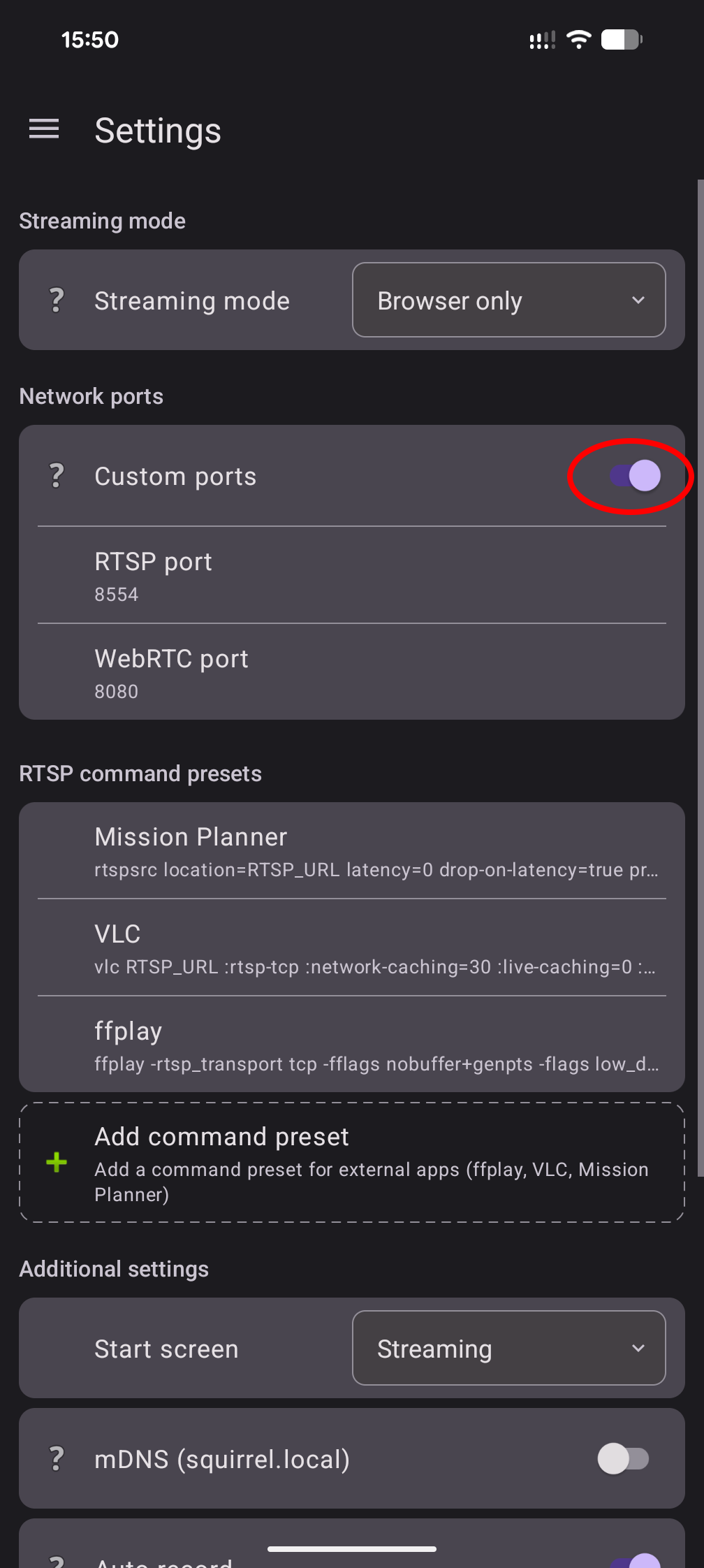
Custom ports
You can change the default network ports used for the WebRTC and RTSP streams in the app settings. This can be useful if you have port conflicts on your network or want to standardize ports across devices.
mDNS (squirrel.local)
If mDNS is enabled, the streams are broadcast under the URL squirrel.local, so you can use that instead of typing the IP address.
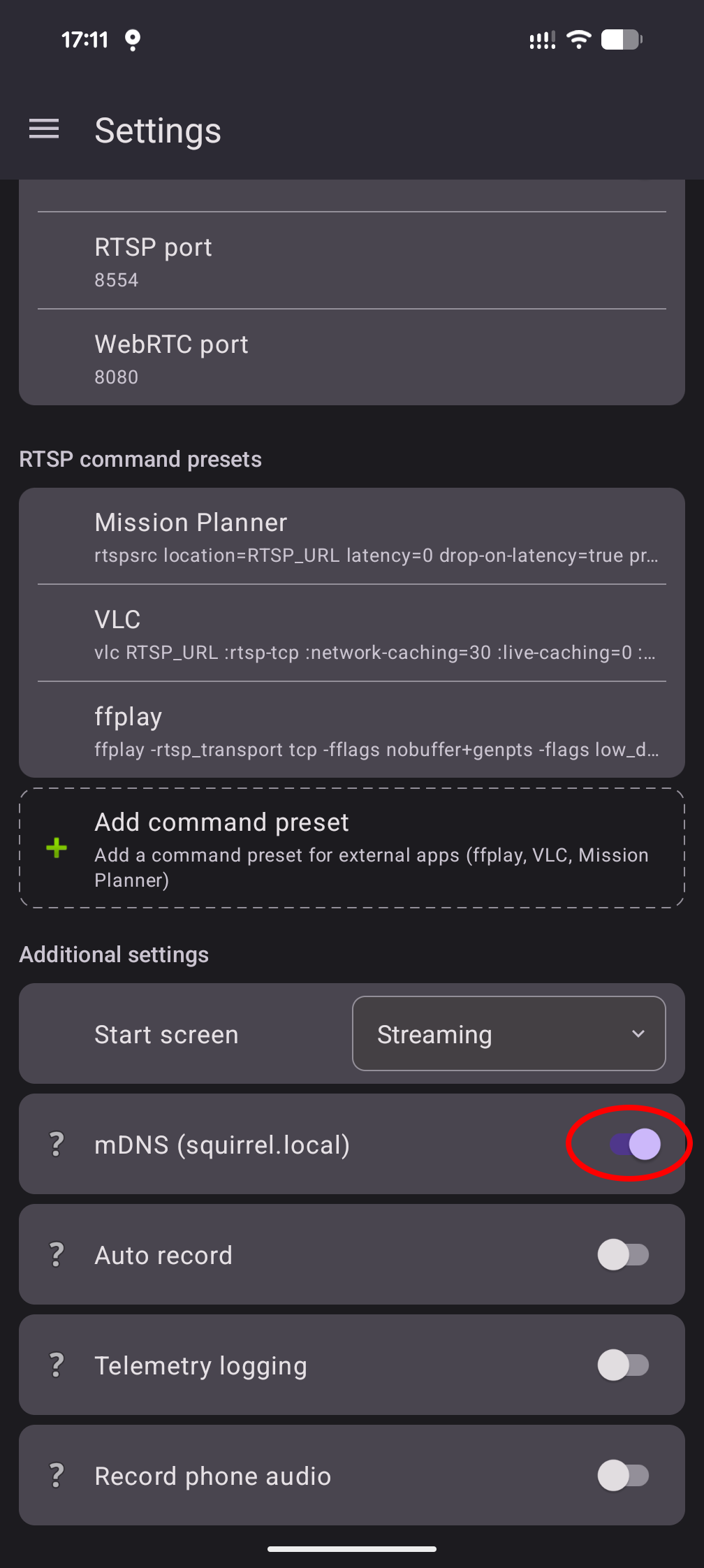
Note: mDNS only works on real Wi-Fi networks with a router, not with phone Wi-Fi hotspots.