SquirrelCast-Public
Receiving Telemetry From the ELRS Backpack Over Wi-Fi
SquirrelCast currently receives CRSF telemetry over Wi-Fi UDP broadcast from the TX backpack. The phone or tablet and the backpack need to be on the same Wi-Fi network.
For the initial backpack setup, follow the official ExpressLRS guide:
Flashing via WiFi
It is recommended to set the Backpack Home Wi-Fi SSID and password to match your phone hotspot when flashing. That gives you both options later:
- automatic connection to your phone hotspot or home network
- direct connection to the backpack’s own Wi-Fi access point
Flash Backpack firmware 1.5.7 or newer
The feature has been merged and is present in ExpressLRS Backpack 1.5.7 or newer.
- Open ExpressLRS Configurator.
- Select Backpack in the left-side menu.
- Select firmware version
1.5.7or newer. - Select your TX backpack target.
- Set the Backpack Home Wi-Fi SSID and password to your home network or phone hotspot.
- Flash that build to the backpack.
As an alternative, you can also use the official ExpressLRS Web Flasher:
https://expresslrs.github.io/web-flasher/
In the Web Flasher:
- Click Transmitter Module.
- Select firmware version
1.5.7or newer. - Select your TX backpack target.
- Set the Backpack Home Wi-Fi SSID and password to your home network or phone hotspot.
- Flash the backpack.
If the backpack does not connect
A patch for some ESP32-C3 based TX backpack targets has been merged into Backpack master, but it is not included in Backpack 1.5.7. On affected targets, setting Telemetry to WiFi may not make the backpack start or connect to Wi-Fi.
If this happens, either flash the current master branch or use the short-term workaround: set Link Mode to MAVLink, set Telemetry to WiFi, wait for Wi-Fi to start, then set Link Mode back to Normal. The workaround needs to be repeated after power cycling.
For the full master flashing flow and a more detailed explanation, see ELRS Backpack C3 Wi-Fi telemetry troubleshooting.
Enable Wi-Fi telemetry in the ELRS Lua script
To enable Wi-Fi telemetry forwarding:
- Power on the radio and make sure it is connected to the receiver or aircraft.
- Open the ExpressLRS Lua script on the radio.
- Go to Backpack.
- Scroll down to Telemetry.
- Set it to
WiFi.
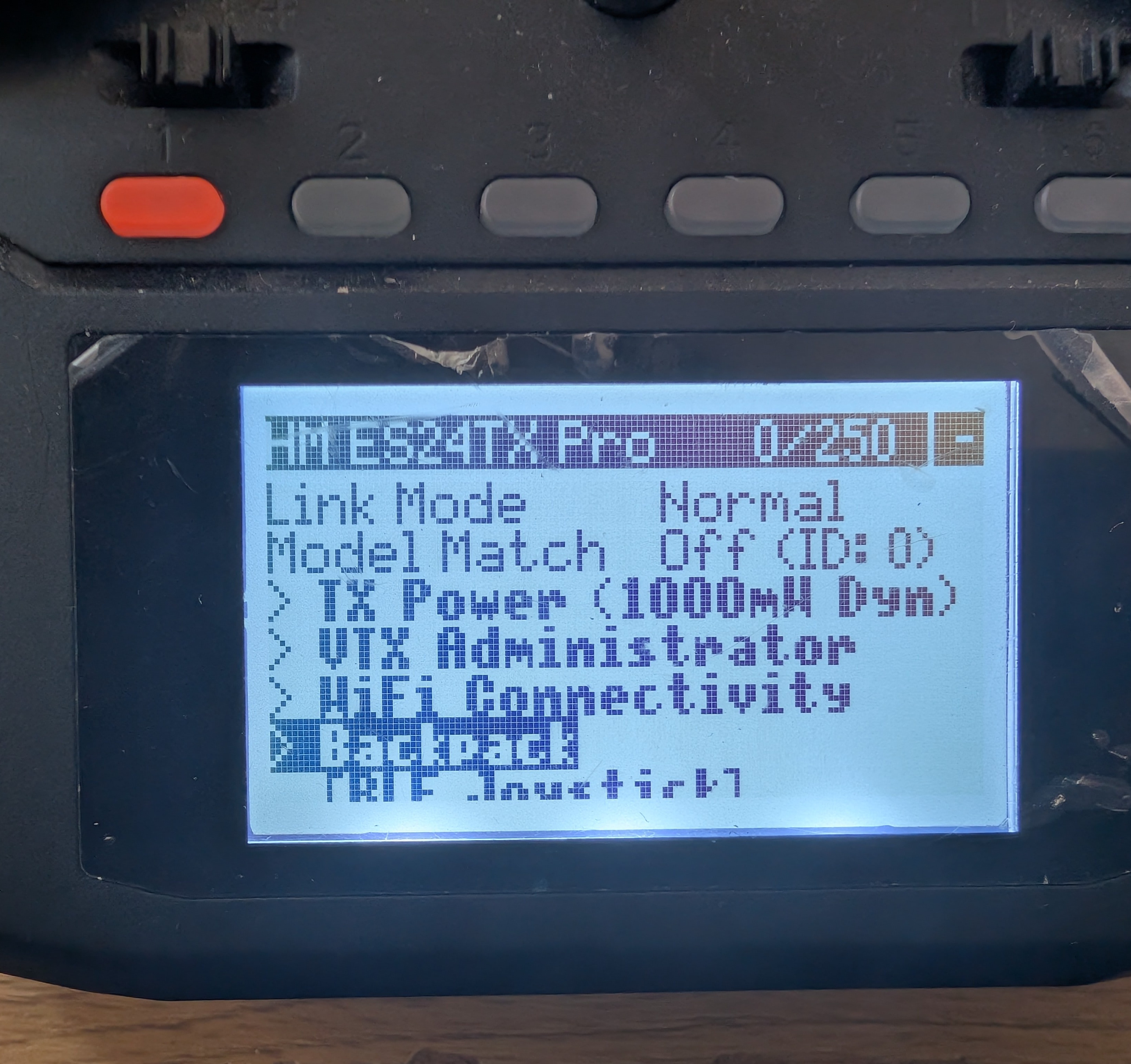
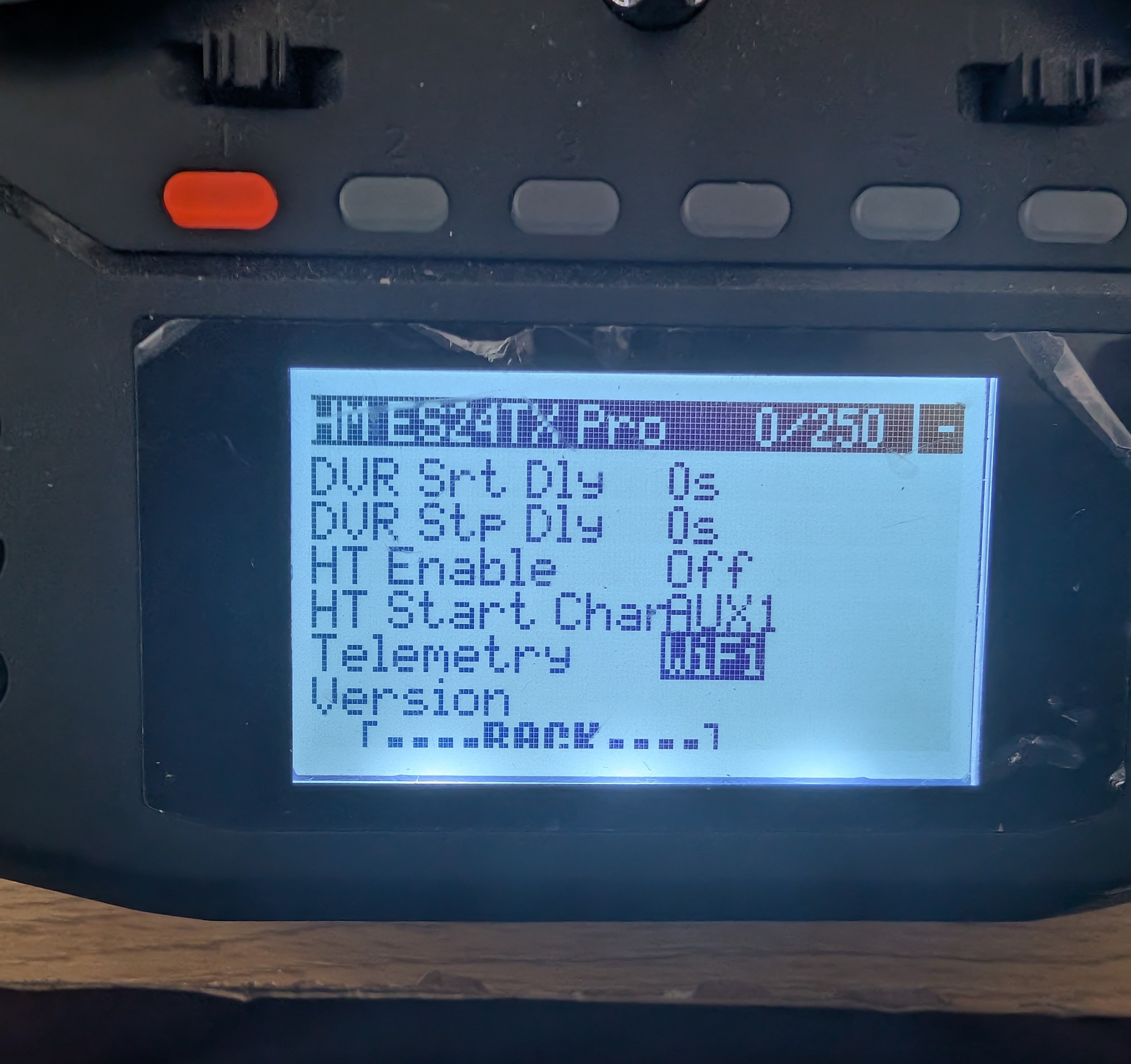
Note: Do not use WiFi Connectivity -> Enable Backpack WiFi for telemetry forwarding. That menu is for firmware update mode. For telemetry forwarding, setting Telemetry to
WiFistarts the backpack Wi-Fi automatically.
Telemetry ratio and update speed
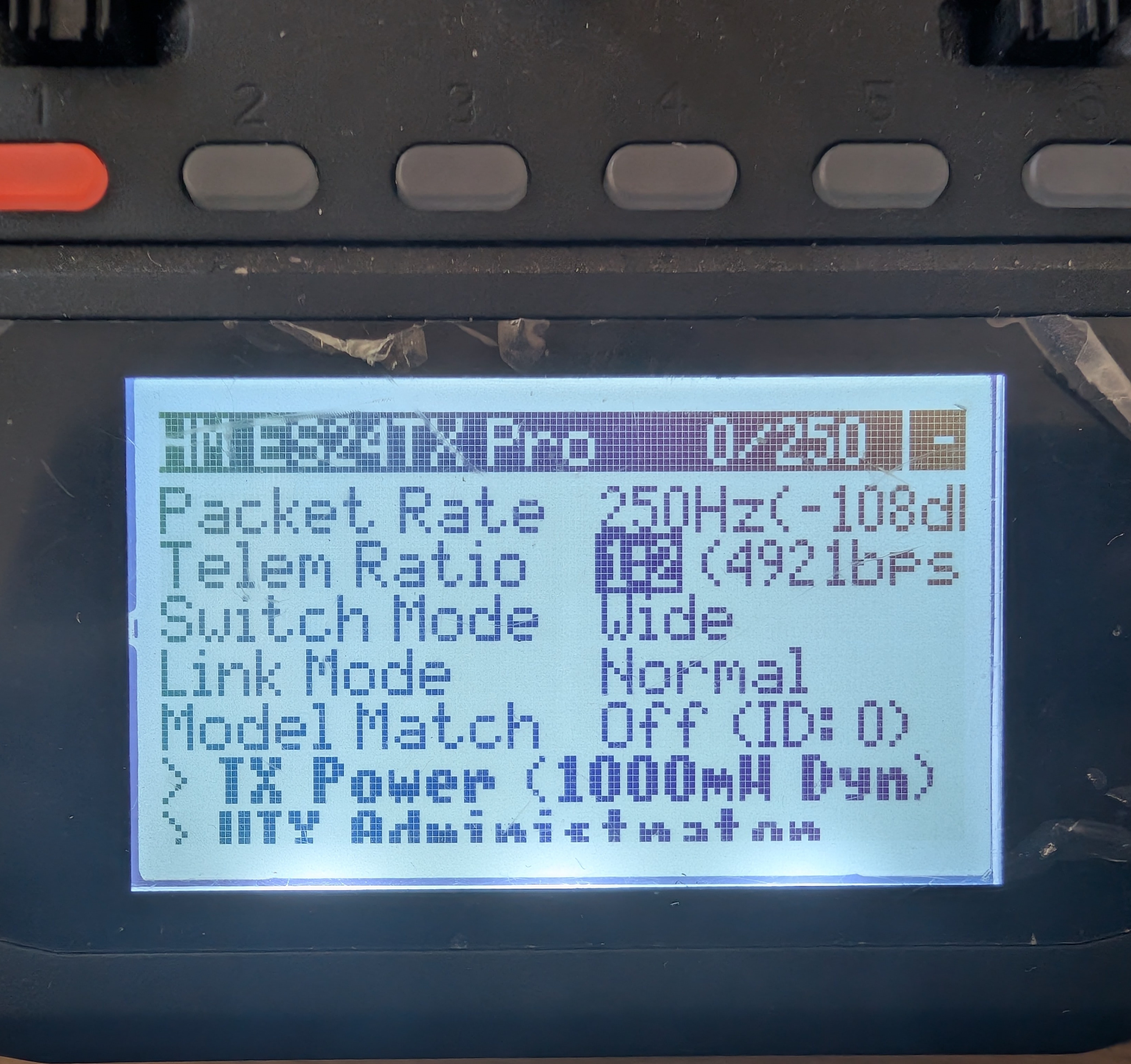
It is often worth increasing the telemetry frequency from 1:64 if you want smoother updates in the app. At 250Hz, a telemetry ratio of 1:64 means one telemetry slot about every 256ms, or roughly 3.9 telemetry packets per second.
That does not mean every telemetry value updates 3.9 times per second. Telemetry is split across different packet types, so any particular value can update much more slowly. At 1:64 and 250Hz, GPS updates can be roughly every 5-10s.
A faster ratio such as 1:2 makes telemetry look much smoother in the app, but it also reduces control link update frequency. At 1:2, roughly one out of every three RF packets is telemetry, so a 250Hz link behaves more like about 166Hz for control updates.
This is optional. If you prefer maximum control link update frequency, leave the telemetry ratio lower. For more detail, see the official ExpressLRS page on Telemetry Bandwidth.
Connect the phone or tablet to the backpack
When Telemetry is set to WiFi, the backpack starts Wi-Fi automatically.
Option 1: Use your phone hotspot or home Wi-Fi
- Set the Backpack Home Wi-Fi SSID and password when flashing.
- Turn on your phone hotspot or use the same local Wi-Fi network.
- Power up the radio.
- The backpack should connect automatically.
This is the most convenient option if you want the backpack to join your hotspot as soon as it powers on.
Option 2: Connect directly to the backpack access point
- Leave the hotspot off, or power up where the configured Home Wi-Fi is not available.
- Power up the radio.
- Connect the phone or tablet to the Wi-Fi network
ExpressLRS TX Backpack XXXXXX. - Use the password
expresslrs.
The XXXXXX part is a 6-character identifier unique to your TX backpack. On Android, this network will usually show up as having no internet access. In that case, choose Use network as is, Stay connected, or the closest equivalent on your device.
If you only want telemetry in the app and do not need video streaming, a hotspot is not required. You can simply connect directly to the backpack access point.
Check telemetry in SquirrelCast
- Make sure the radio and the receiver or aircraft are powered on and connected.
- Open the Telemetry tab in SquirrelCast.
- Look for the ELRS indicator at the top of the page.
- If the indicator is active and telemetry values start updating, telemetry is being received.
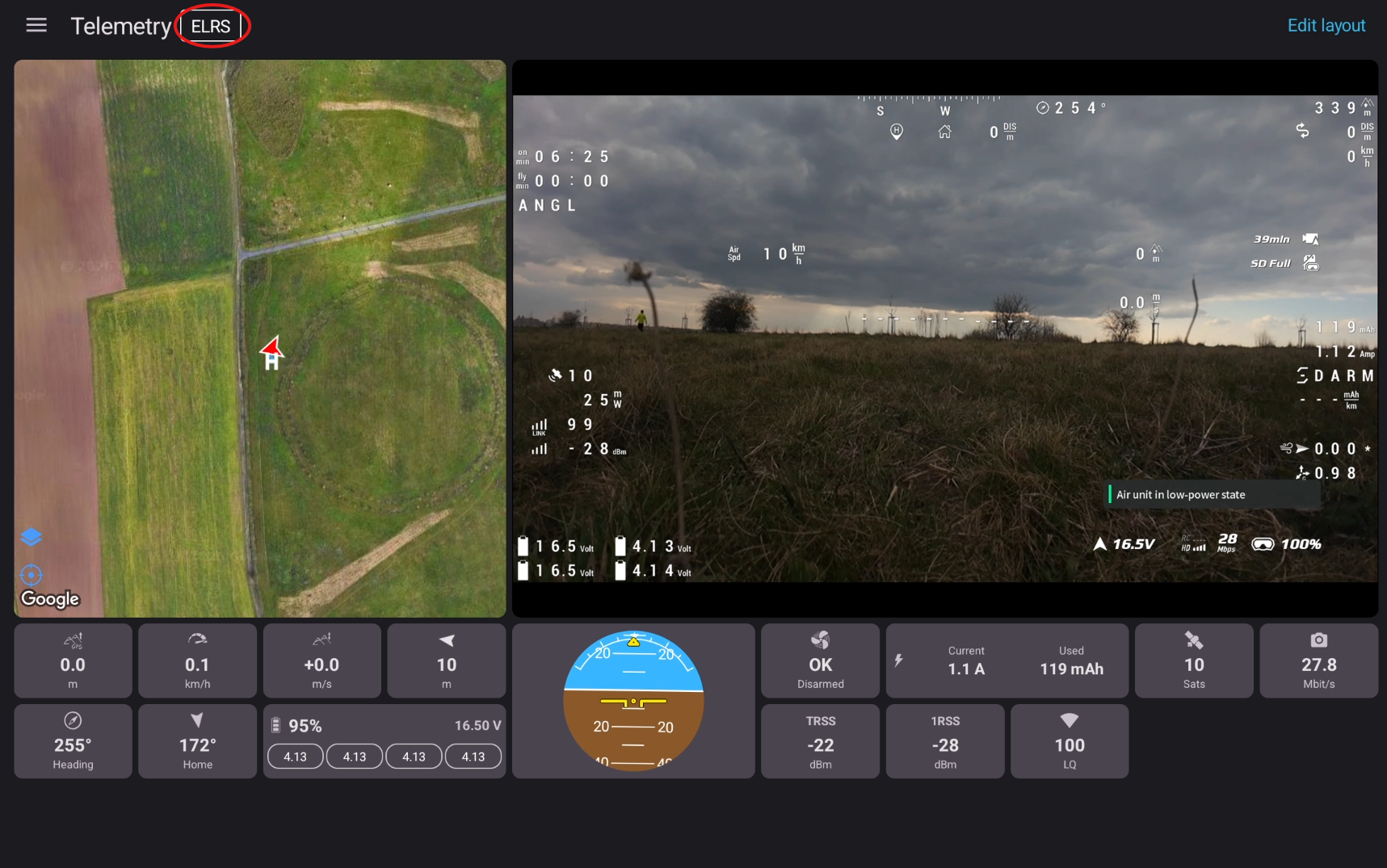
The map will show a position only after the flight controller has a GPS fix.
Set a custom port
By default, the backpack and the app both use UDP port 14550, so they should work immediately without any port changes.
If you want to use a custom port:
- Make sure the phone or tablet is on the same network as the backpack.
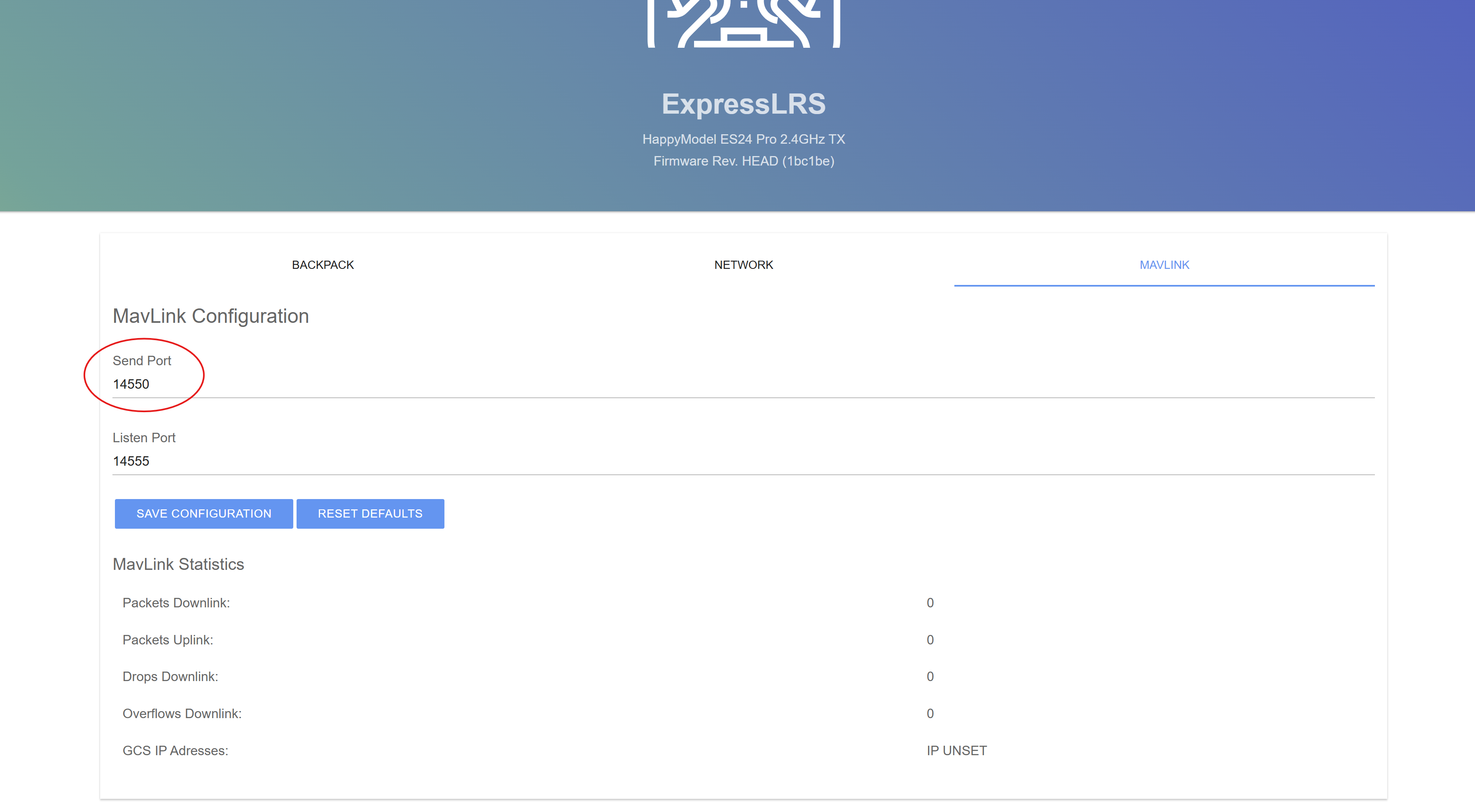
- Open the backpack configuration page in a browser.
- Use
http://elrs_txbp.local/when connected through Home Wi-Fi or hotspot, orhttp://10.0.0.1/when connected directly to the backpack AP. - Open the MAVLink tab.
- Change SendPort to the port you want to use.
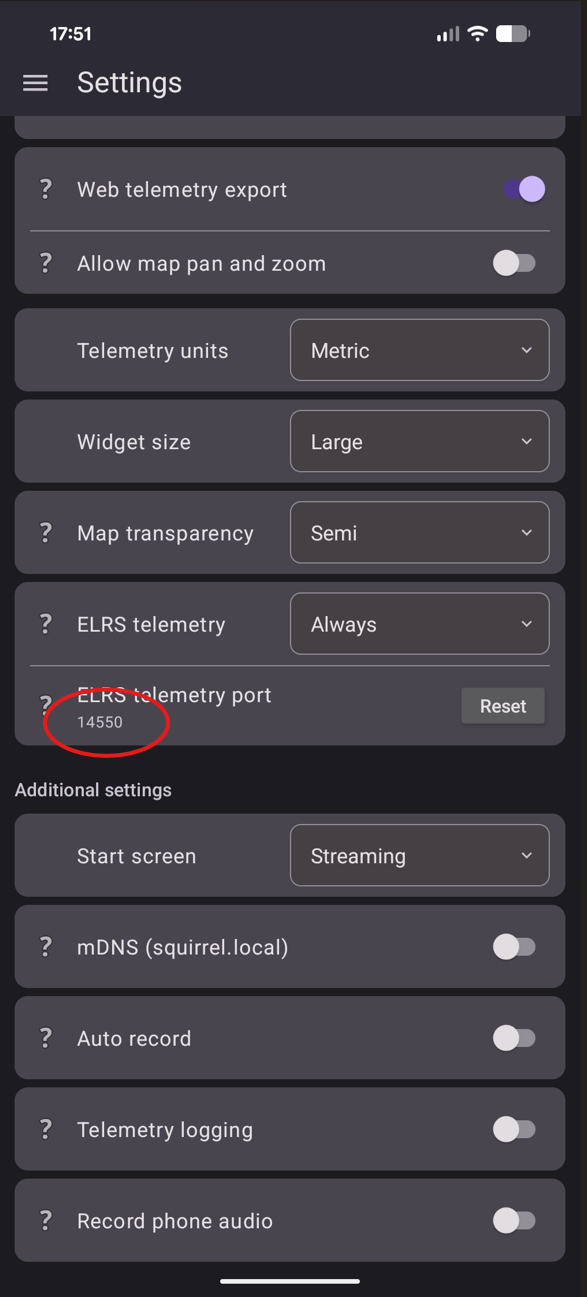
- In SquirrelCast, open Settings and change ELRS telemetry port to the same value.
Current protocol support
MAVLink support has not been added to SquirrelCast yet, but it is planned. For now, telemetry over Wi-Fi works only when your radio link is using the CRSF protocol.