SquirrelCast-Public
ELRS Backpack C3 Wi-Fi Telemetry Troubleshooting
ExpressLRS Backpack 1.5.7 includes CRSF telemetry over Wi-Fi UDP broadcast, which is the normal firmware path recommended in the main setup guide. A later patch for some ESP32-C3 based TX backpack targets was merged into Backpack master, but it is not included in 1.5.7.
On affected targets, setting Telemetry to WiFi in Normal link mode may not start or connect Wi-Fi. The upstream PR explains that on C3 devices, not calling SetSoftMacAddress before entering Wi-Fi mode can cause serial TX to stop working and Wi-Fi to fail to start correctly, which can break backpack functionality.
The upstream references are:
Option 1: Flash master with ExpressLRS Configurator
Flash the current Backpack master branch if you want the merged fix instead of using the temporary workaround.
- Open ExpressLRS Configurator.
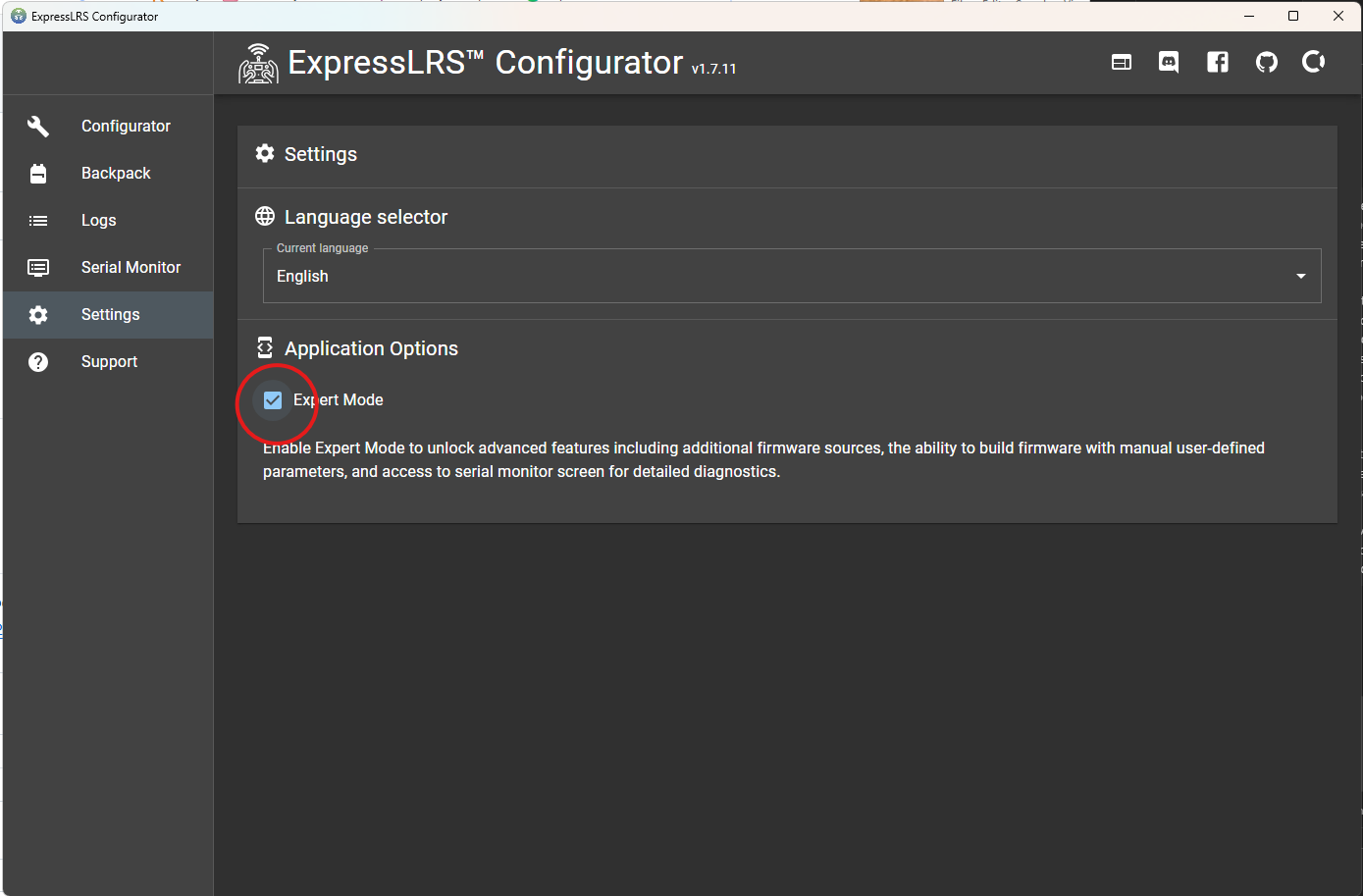
- Open Settings and enable Expert Mode.
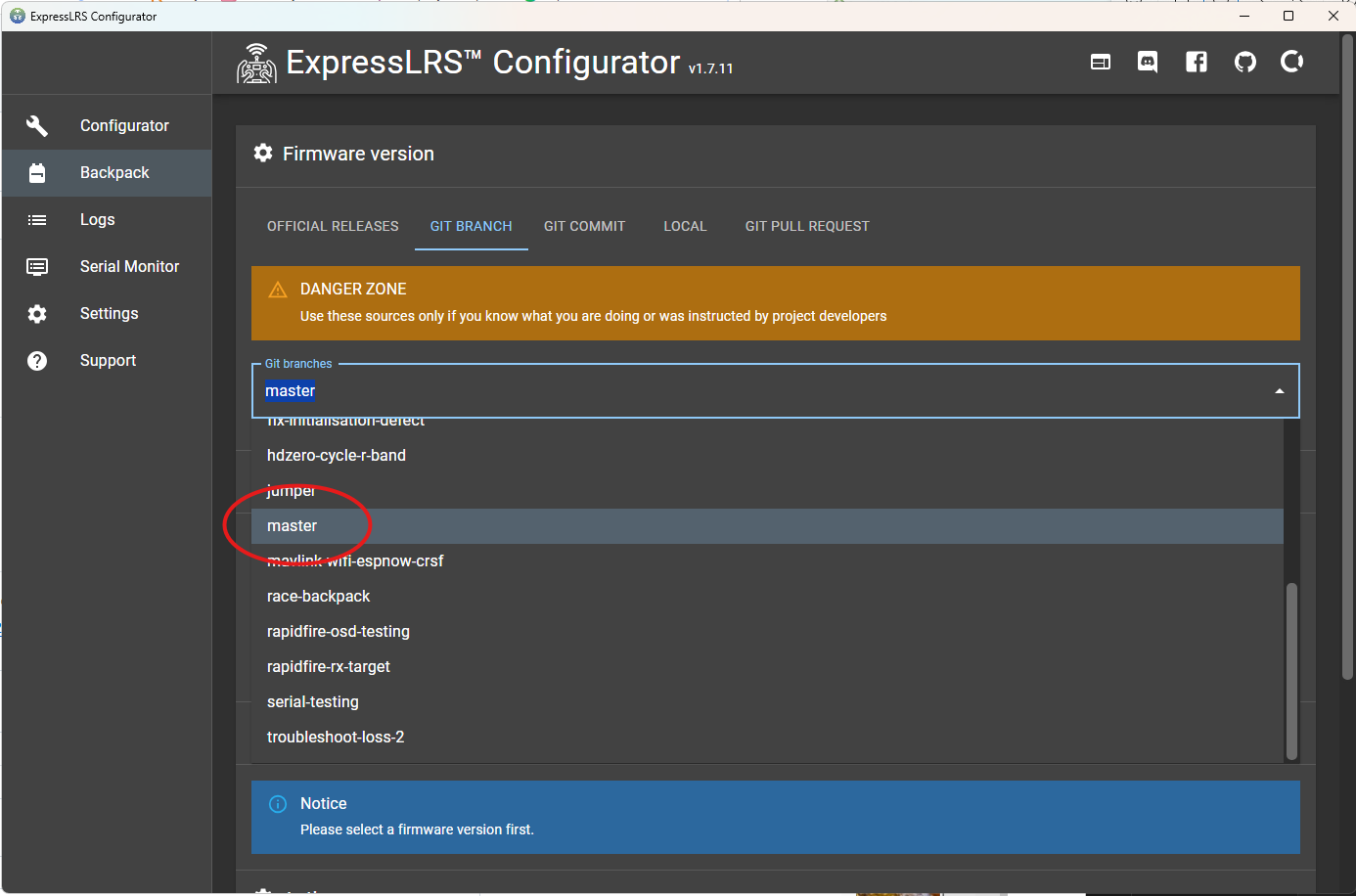
- Select Backpack in the left-side menu.
- Change Git branches to
master. - Select your TX backpack target.
- Set the Backpack Home Wi-Fi SSID and password to your home network or phone hotspot.
- Flash that build to the backpack.
Option 2: Flash master with ExpressLRS Web Flasher
You can also use the official ExpressLRS Web Flasher:
https://expresslrs.github.io/web-flasher/
- Click Transmitter Module.
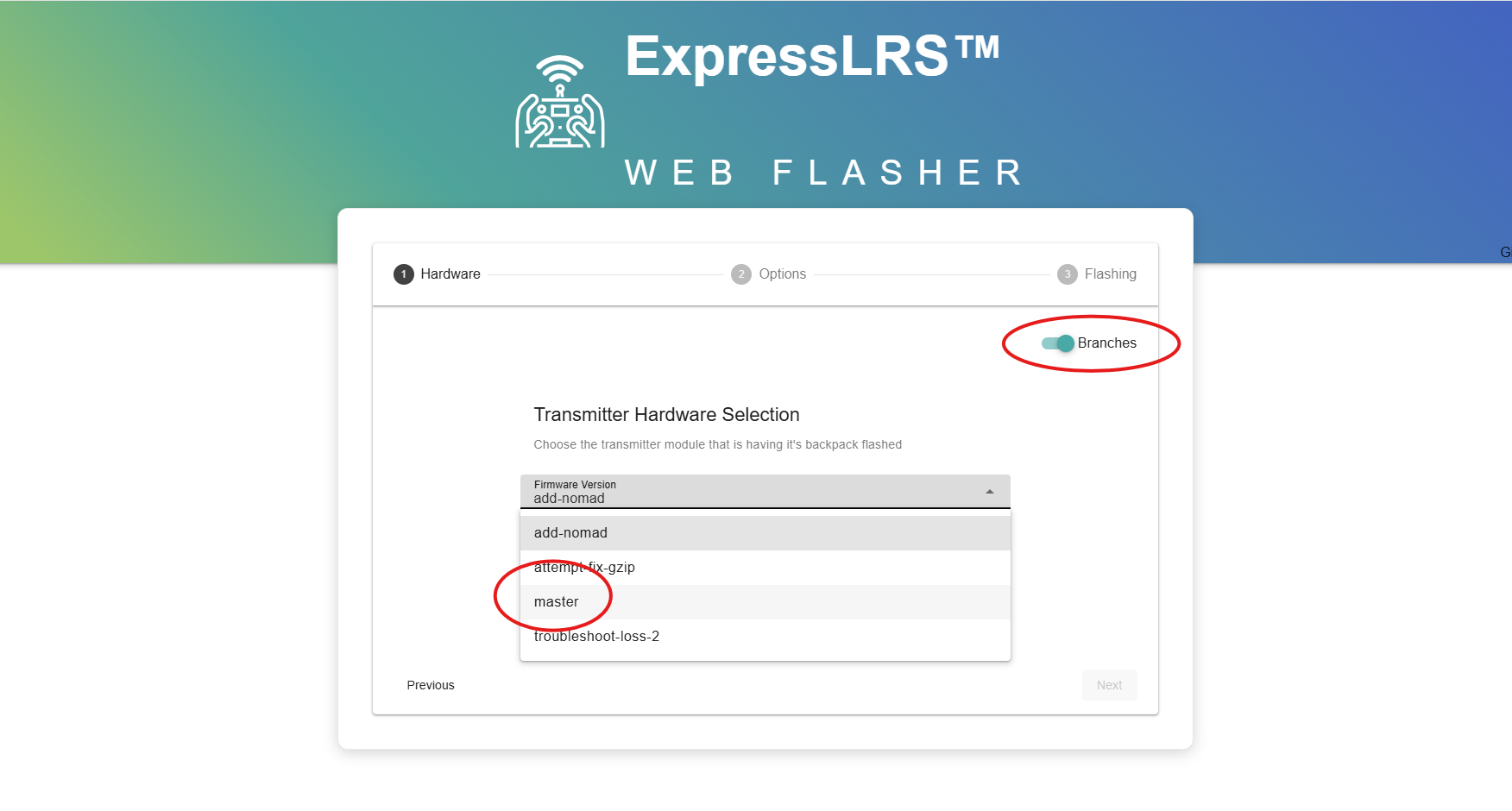
- Enable the Branches toggle.
- Select the
masterbranch. - Select your TX backpack target.
- Set the Backpack Home Wi-Fi SSID and password to your home network or phone hotspot.
- Flash the backpack.
Option 3: Use the temporary Link Mode workaround
If you want to stay on release firmware, you can trigger Wi-Fi by briefly switching the backpack into MAVLink mode. In the reported cases, MAVLink mode starts Wi-Fi immediately. After Wi-Fi is running, switching back to Normal mode keeps the connection alive for CRSF telemetry.
- Power on the radio and make sure it is connected to the receiver or aircraft.
- Open the ExpressLRS Lua script on the radio.
- Go to Backpack.
- Set Link Mode to
MAVLink. - Set Telemetry to
WiFi. - Wait for the backpack Wi-Fi to start or connect to the configured Home Wi-Fi.
- Set Link Mode back to
Normal. - Leave Telemetry set to
WiFi.
This workaround needs to be repeated after power cycling the backpack. SquirrelCast currently receives CRSF telemetry only, so switch back to Normal before using the app.
If the workaround still does not start Wi-Fi, make sure the Backpack Home Wi-Fi SSID and password were set while flashing, and avoid special characters in the hotspot name and password.