SquirrelCast-Public
Connecting to the Goggles
USB Connection and Permissions
- Connect your phone to the DJI goggles using a USB-C cable.
- When Android shows the USB permission prompt, tap Allow to let SquirrelCast access the goggles.
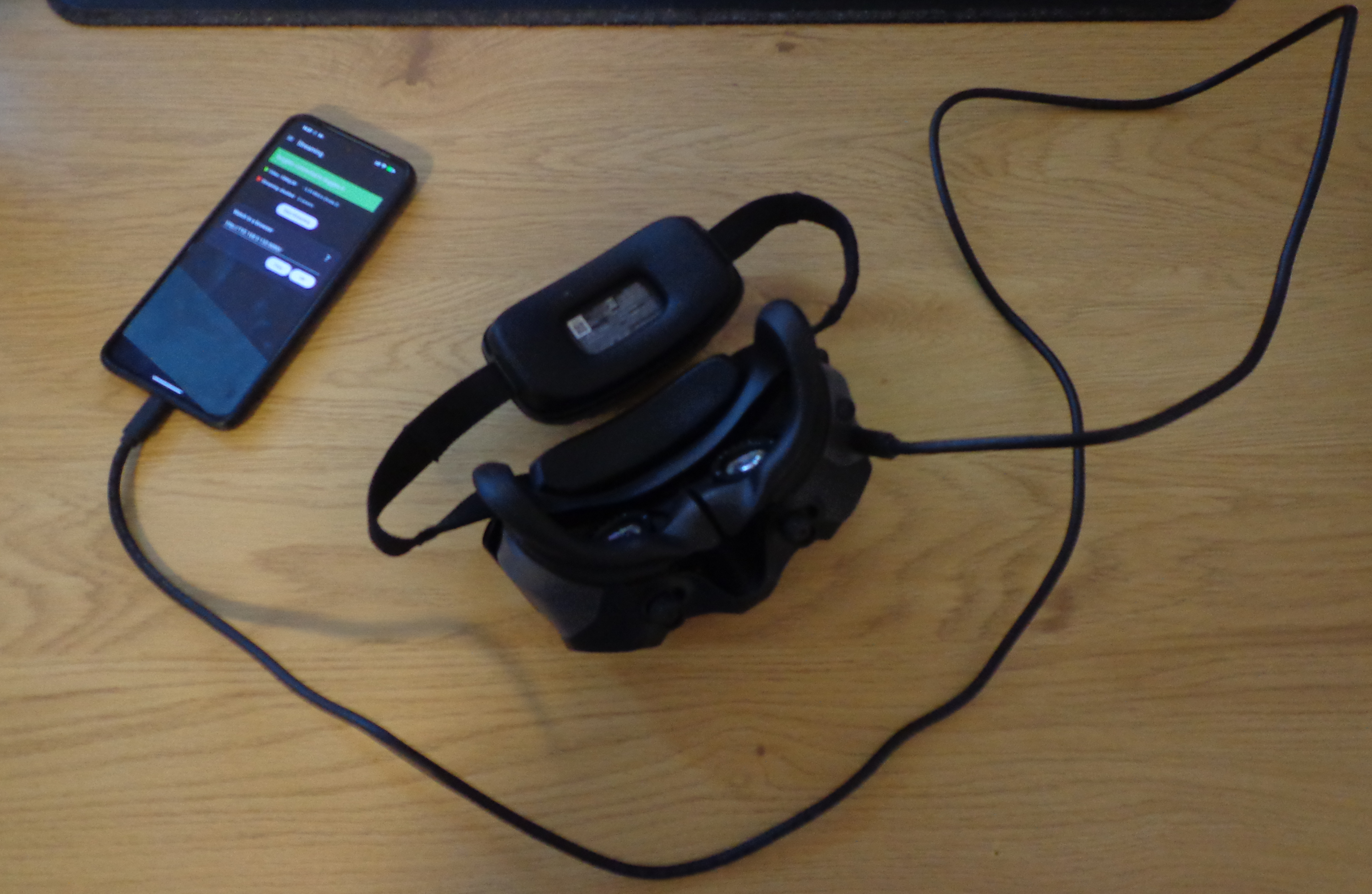
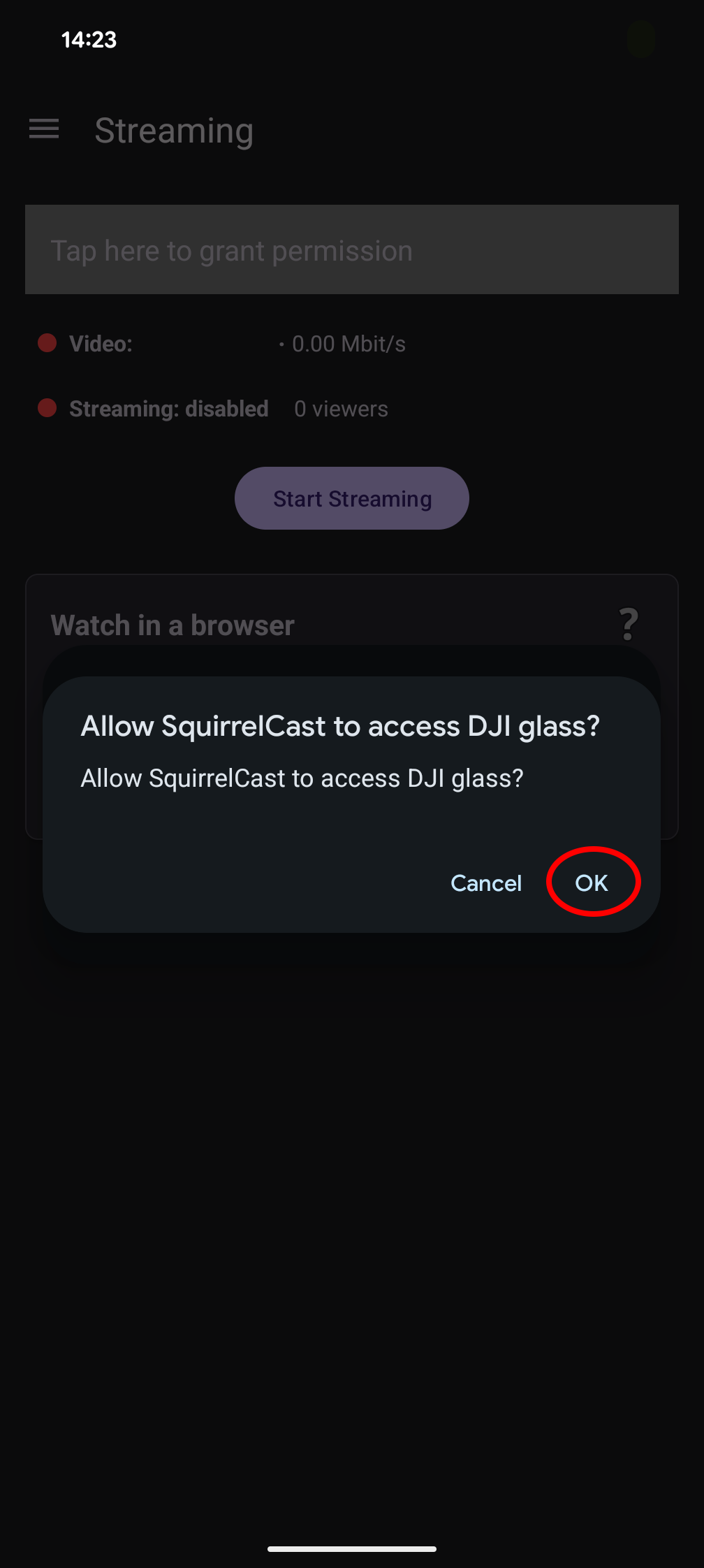
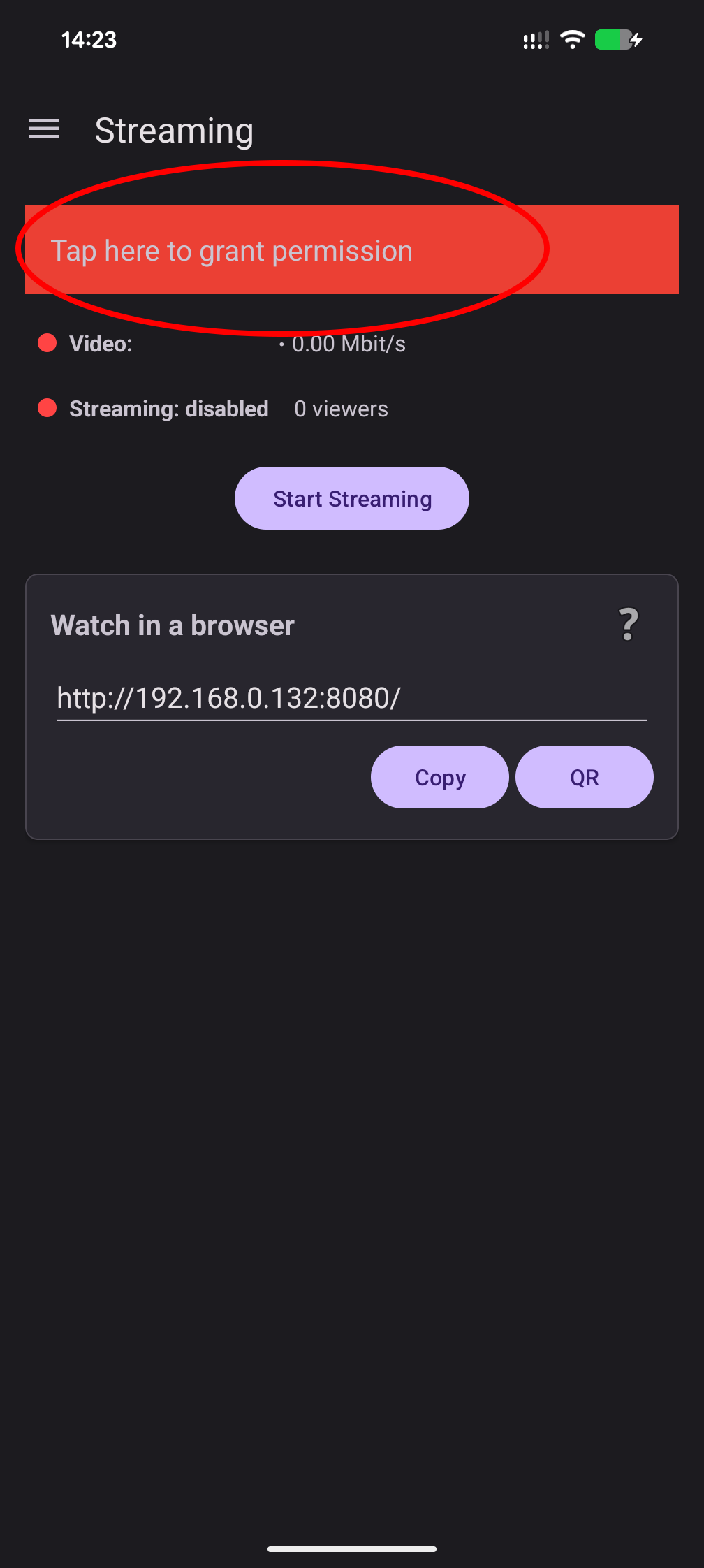
If you accidentally deny the permission, SquirrelCast cannot connect. Tap the red button to show the permission prompt again.
Note: DJI Fly must be closed while using SquirrelCast. The goggles can only connect to one app at a time.
If DJI Fly opens automatically, switch to DJI Fly, fully close it (remove it from recent apps), then return to SquirrelCast and grant the permission again.
Connection Status
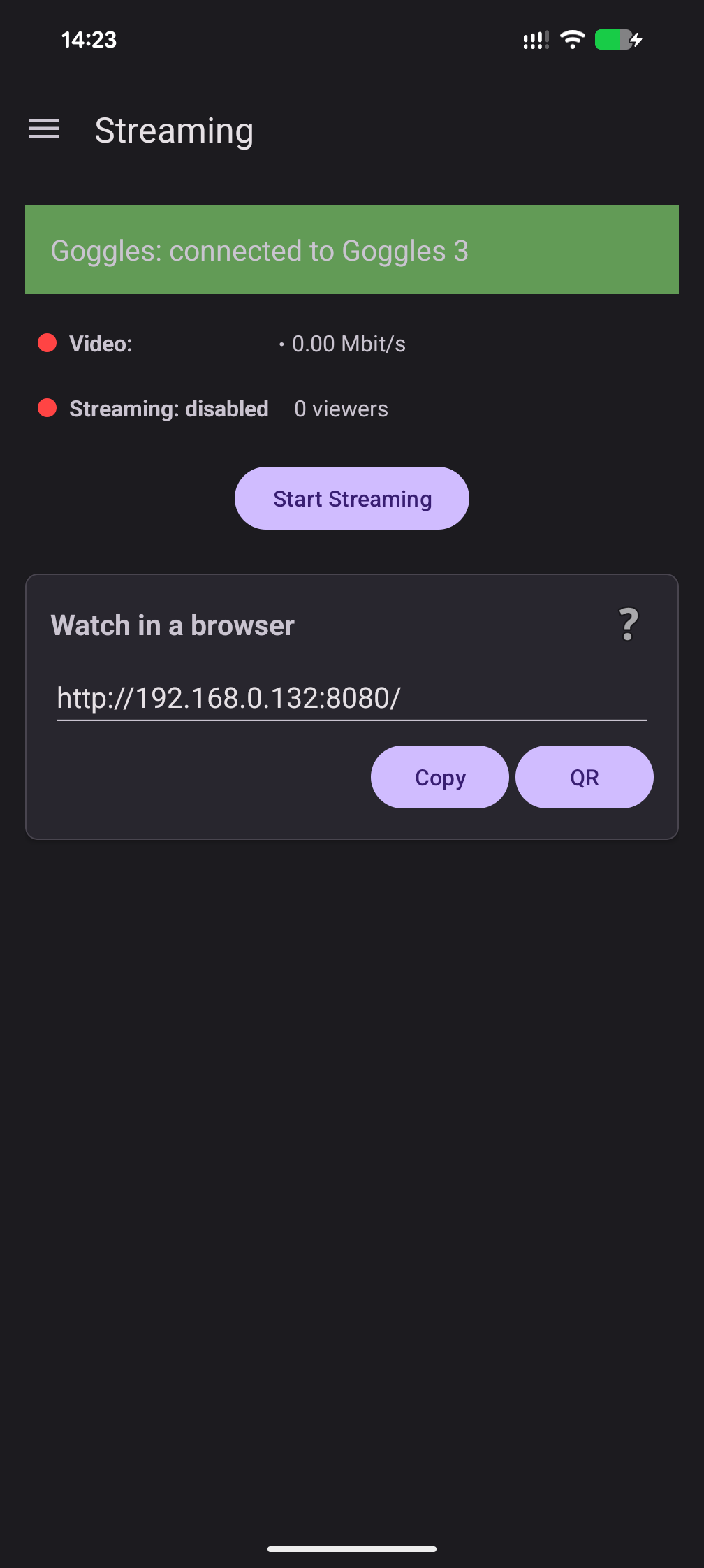
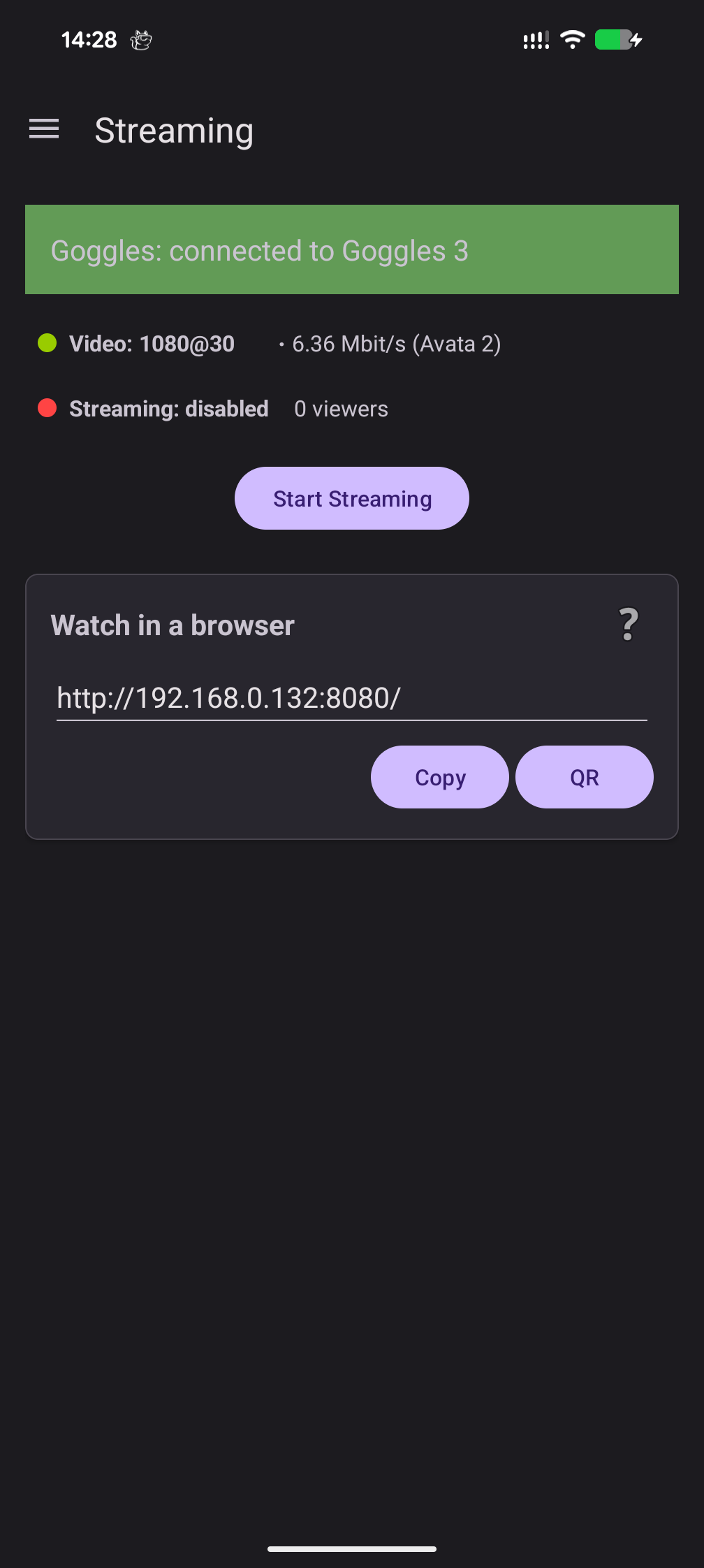
The Streaming tab will show the status of the connection:
- Shows a successful connection to the goggles.
- Whether the goggles are actively receiving video from an aircraft or drone.
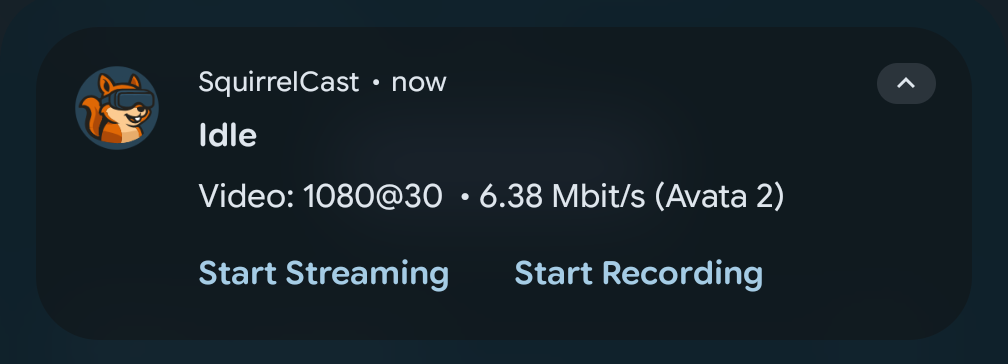
- When the goggles are receiving video, there is also a notification showing the status.